Flexbox Setup
Learning objective: By the end of this lesson, students will be able to create HTML and CSS files with starter code for this module’s lecture.
Open your Terminal application and navigate to your ~/code/ga/lectures directory:
cd ~/code/ga/lectures
Make a new directory called flexbox, then enter this directory:
mkdir flexbox
cd flexbox
Create a folder called css:
mkdir css
Then, create an index.html file and a style.css file that lives inside the css folder. These files will hold your work for this lecture:
touch index.html ./css/style.css
With the files created, open the contents of the directory in VS Code:
code .
Open the index.html file and add HTML boilerplate by typing ! and then hitting the Tab key. Then link the style.css file by adding this line inside the <head> tag:
<link rel="stylesheet" href="./css/style.css">
Add the following HTML inside the body:
  <section class="flex-parent">
    <div class="flex-child" id="one">1</div>
    <div class="flex-child" id="two">2</div>
    <div class="flex-child" id="three">3</div>
    <div class="flex-child" id="four">4</div>
  </section>
Add the following to css/style.css:
body {
  background-color: gray;
  font-family: sans-serif;
  margin: 0;
}

.flex-parent {
  background-color: black;
}

.flex-child {
  font-size: 48px;
}

#one {
  background-color: #f0f0f0;
  color: #707070;
}

#two {
  background-color: #d0d0d0;
  color: #505050;
}

#three {
  background-color: #b0b0b0;
  color: #303030;
}

#four {
  background-color: #909090;
  color: #101010;
}
Open the index.html file in your browser.
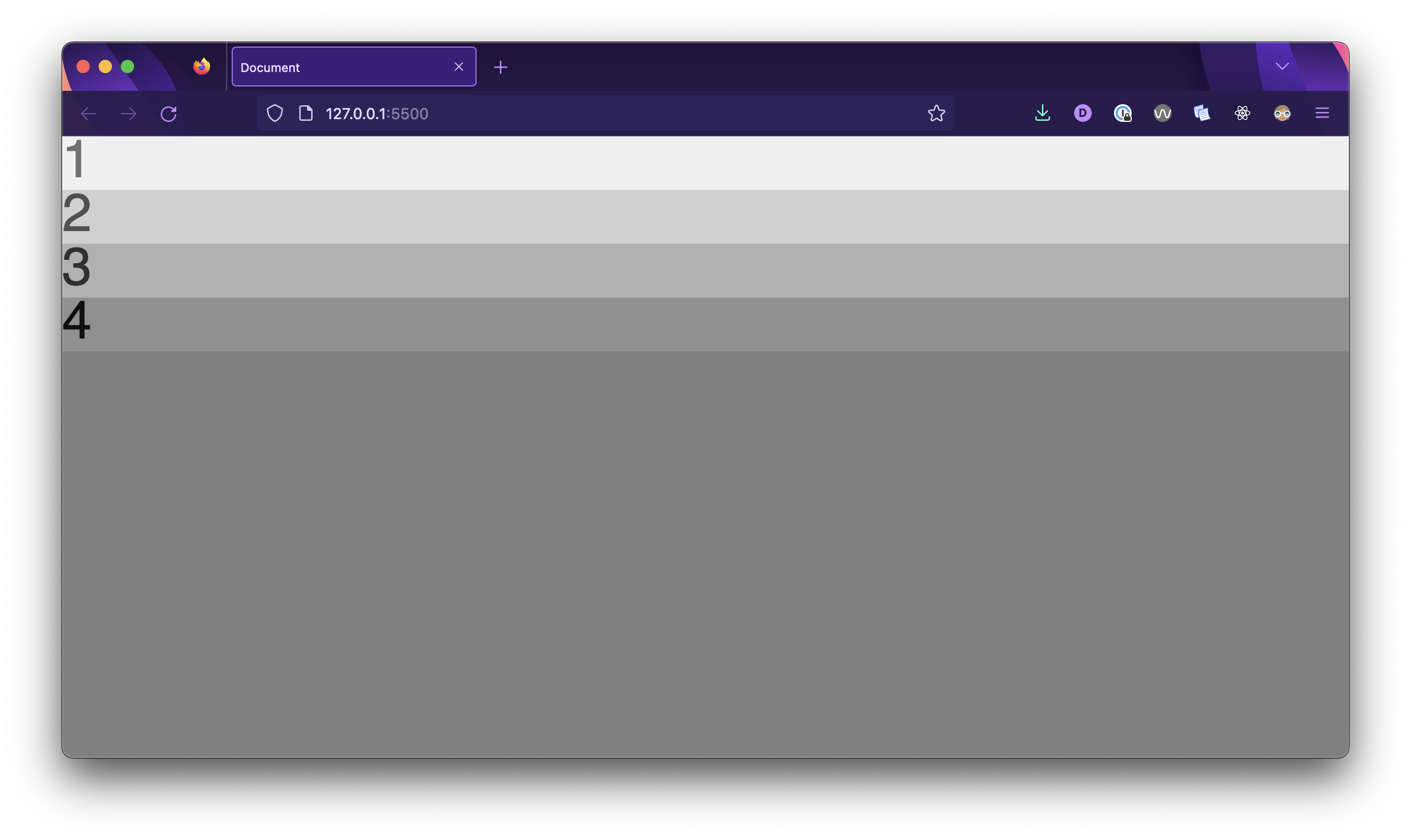
You should see something that looks like the following in your browser: