GitHub Collaboration Fork Method Cheat Sheet
Intro
This document provides a GitHub collaboration cheat sheet for those using the forking method to collaborate on a project.
Note that there is very little explanation for what the commands/actions in this document specifically accomplish - refer back to the main lecture content for more thorough details.
Use the below table of contents to quickly go to the section you need.
Content
-
- Intro
- Content
- Setup (once for each project)
- Forking (once for each project)
- Working in branches (repeat for every new feature you add)
- Creating a pull request (GitHub managers and programmers)
- Merging remotely (GitHub managers)
- Merging locally (GitHub managers and programmers)
- Fixing merge conflicts (GitHub managers and programmers)
Setup (once for each project)
Create a GitHub repository (GitHub manager)
⚠️ Only GitHub managers should complete this task.
Create a new public repository on GitHub with a name of your choice.
Important: The repository should have some contents. If making a new repository, initialize it by adding a README file.
Through the rest of this cheat sheet, we’ll refer to this as the GitHub manager’s remote repo.
Copy the URL to the GitHub manager’s remote repo and distribute it to the programmers on your team.
Clone the repo (GitHub managers)
⚠️ Only GitHub managers should complete this task.
Open your Terminal application and clone the repo to your device into an appropriate location.
We’ll refer to this as the GitHub manager’s local repo.
Forking (once for each project)
Fork the repo (programmers)
⚠️ Only programmers should complete this task.
-
Navigate to the repository: The GitHub manager on your team should have already sent you a URL to access the GitHub manager’s remote repo. Open your browser and navigate there now.
-
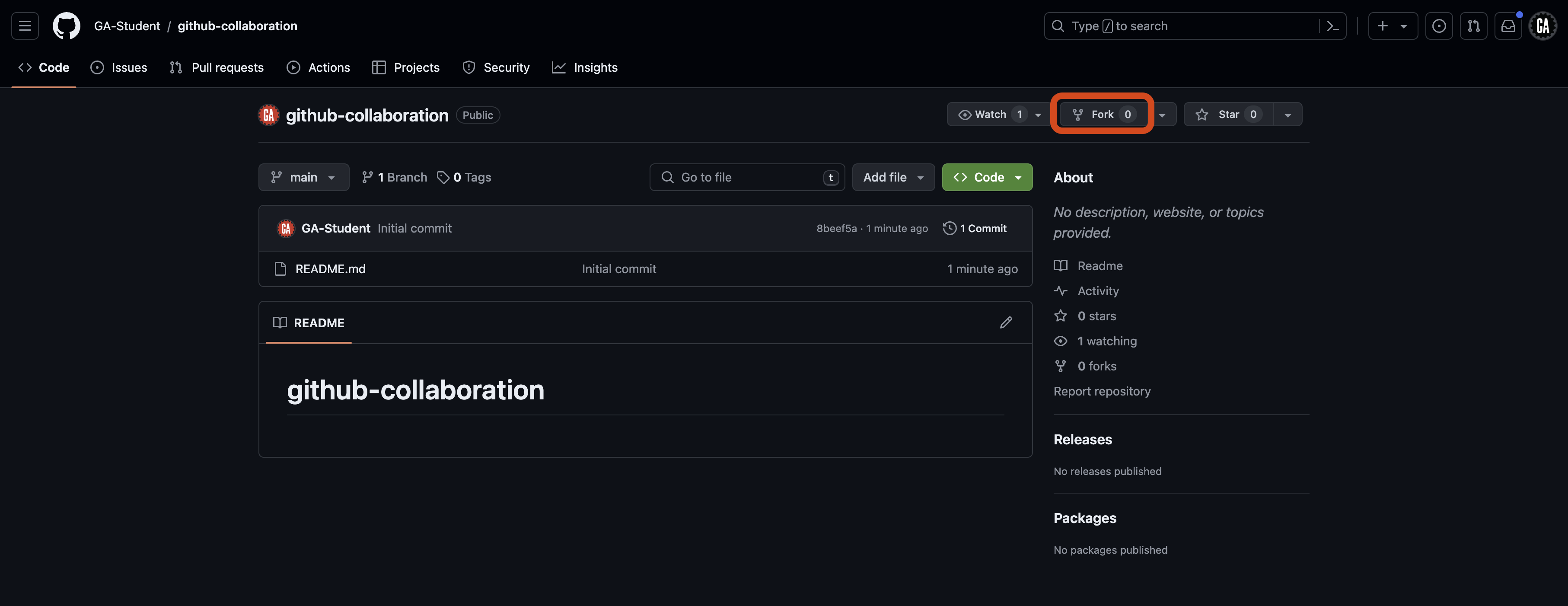
Fork the repo: Select the Fork button near the top right corner of the page, as indicated by the red outline below.
-
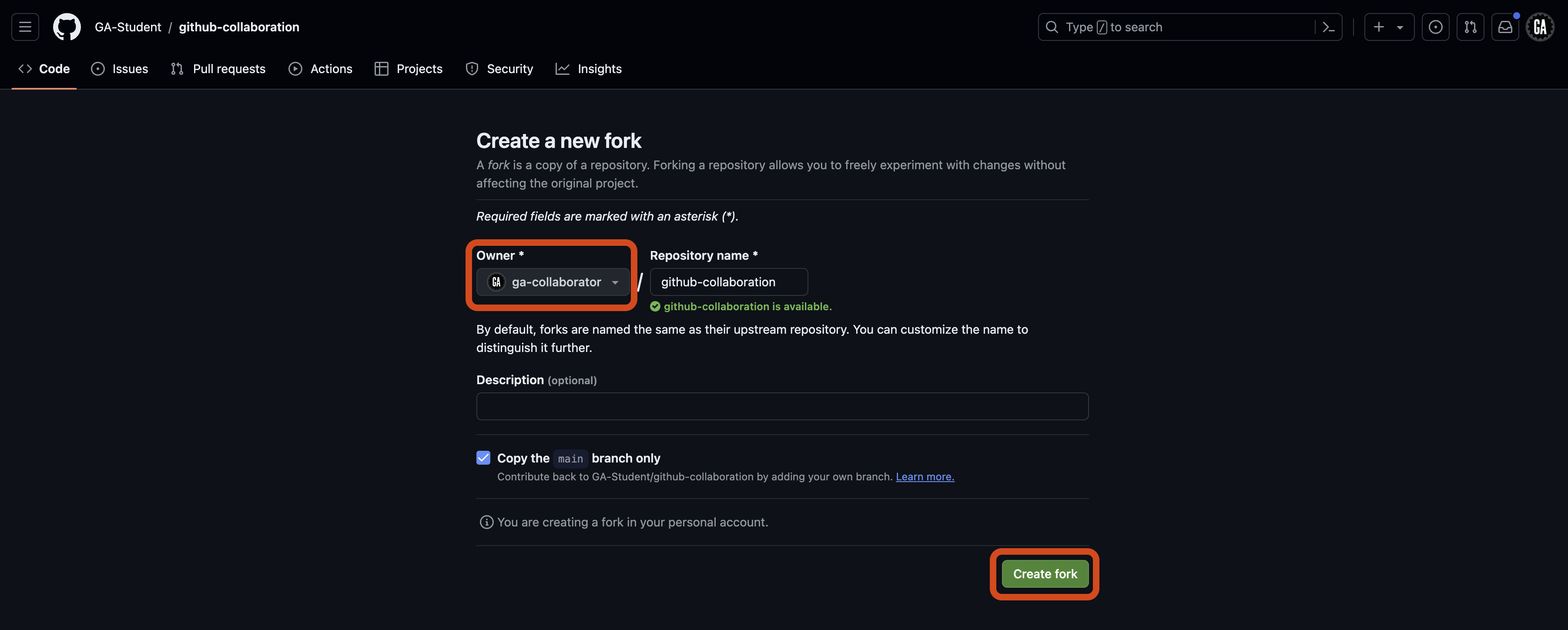
Choose where to create the fork: You’ll be taken to a Create a new fork page. From here, ensure you are the owner of the repo in the dropdown outlined in red, and then select the Create fork button outlined towards the bottom of the page. Typically, when you fork a repo, you’ll create the fork in your personal account and give it the same name as the original repo, as shown below.
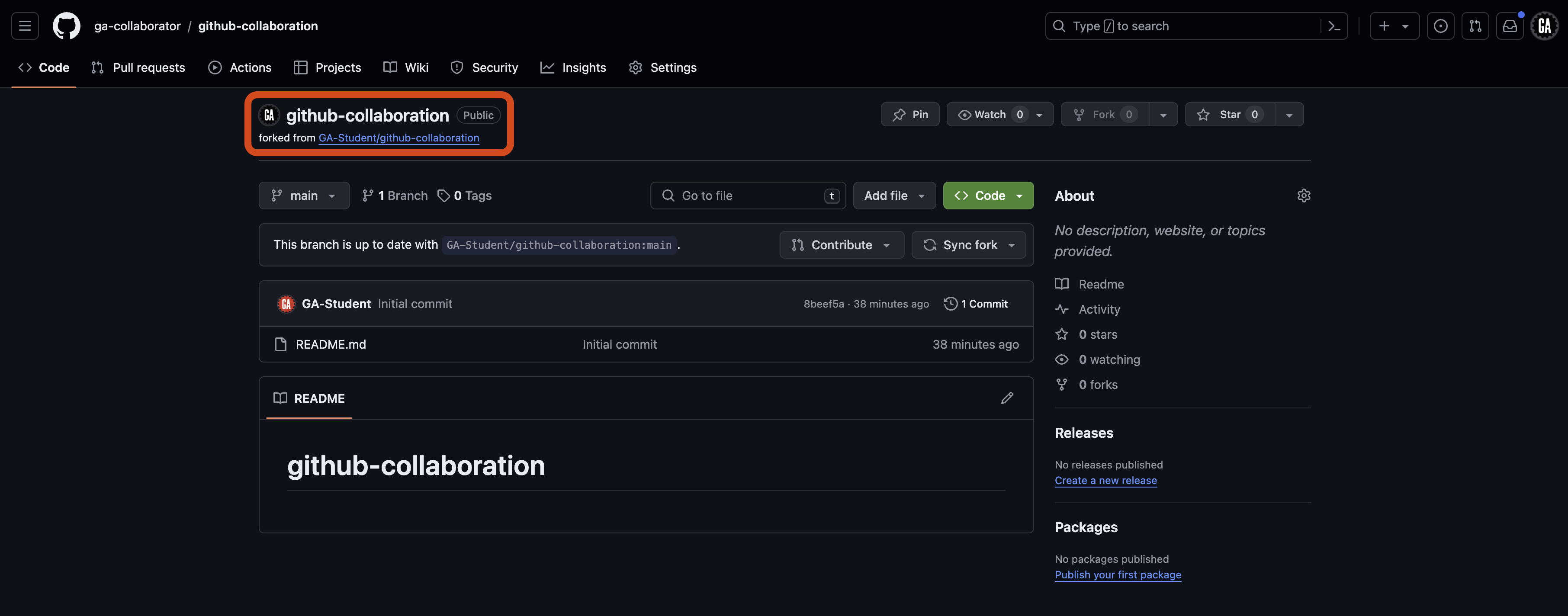
After completing the above steps, you’ll be taken to the forked repo on your account. Through the rest of this cheat sheet, we’ll refer to this repo as the programmer’s remote repo. Note the forked from text outlined in red below, indicating that this repo was forked from another repo (the GitHub manager’s remote repo).
💡 Each programmer has their own remote repo - you’ll only work in your own.
Clone the repo (programmers)
⚠️ Only programmers should complete this task.
Open your Terminal application and clone the repo to your device into an appropriate location.
We’ll refer to this as the programmer’s local repo.
Working in branches (repeat for every new feature you add)
This is where the GitHub collaboration workflow begins. This step and the ones after it are ones you will complete repeatedly throughout a project. Your project should be open in VS Code.
Ensure you have the most recent code (GitHub managers and programmers)
⚠️ Both GitHub managers and programmers should complete this task.
The steps to accomplish this will be slightly different if you are the GitHub manager or a programmer. If you are a GitHub manager, continue to the Merging (GitHub managers) section below. If you are a programmer, skip to the Merging (programmers) section below.
Merging (GitHub managers)
⚠️ Only GitHub managers should complete this task.
First, return to your terminal in VS Code. If you have uncommitted work in a feature branch, commit your work first:
git add -A
git commit -m "meaningful commit message"
Checkout the main branch:
git checkout main
Then, pull the code from the main branch of the GitHub manager’s remote repo:
git pull origin main
Skip to the Creating and checkout a branch section below.
Merging (programmers)
⚠️ Only programmers should complete this task.
Navigate to your fork of the repo on GitHub (the programmer’s remote repo). It should be at this URL: https://github.com/<your-username>/github-collaboration.
🚨 Replace
<your-username>(including the<and>) with your GitHub username.
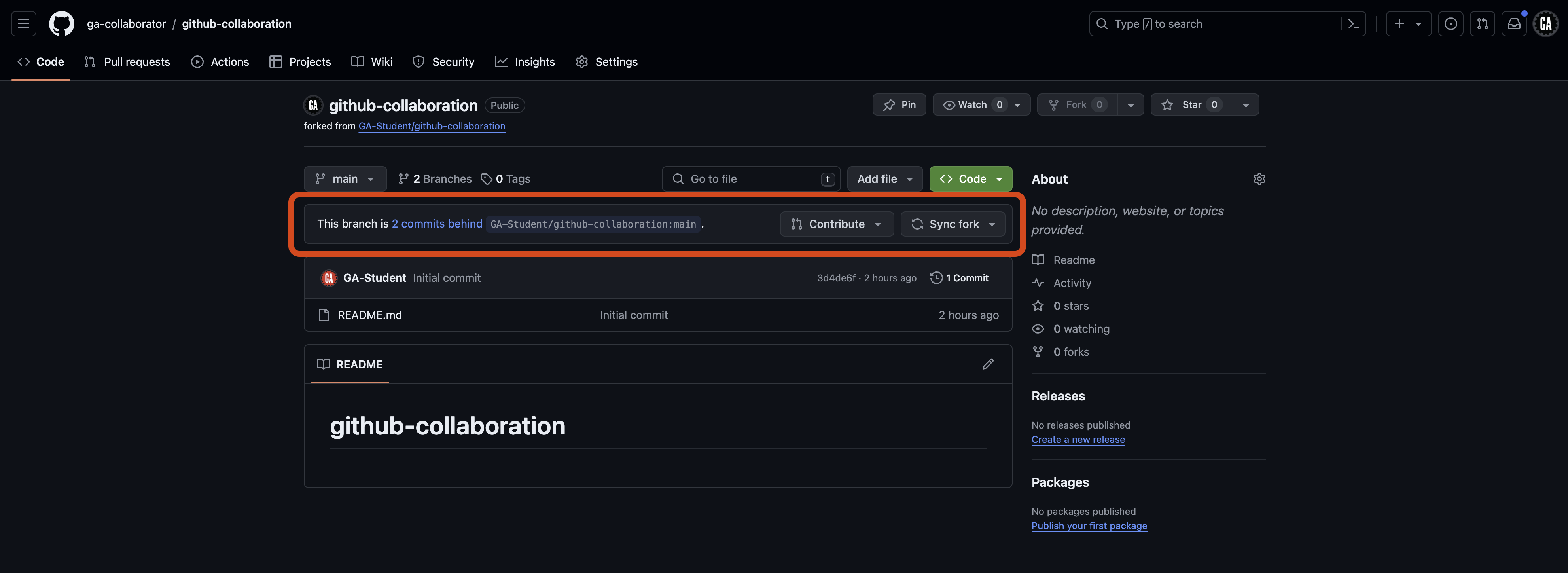
If the main branch of your remote repo isn’t up to date, you should see a section like the one outlined in red below. This indicates the main branch of your programmer’s remote repo is out of date compared to the main branch of the GitHub manager’s remote repo:
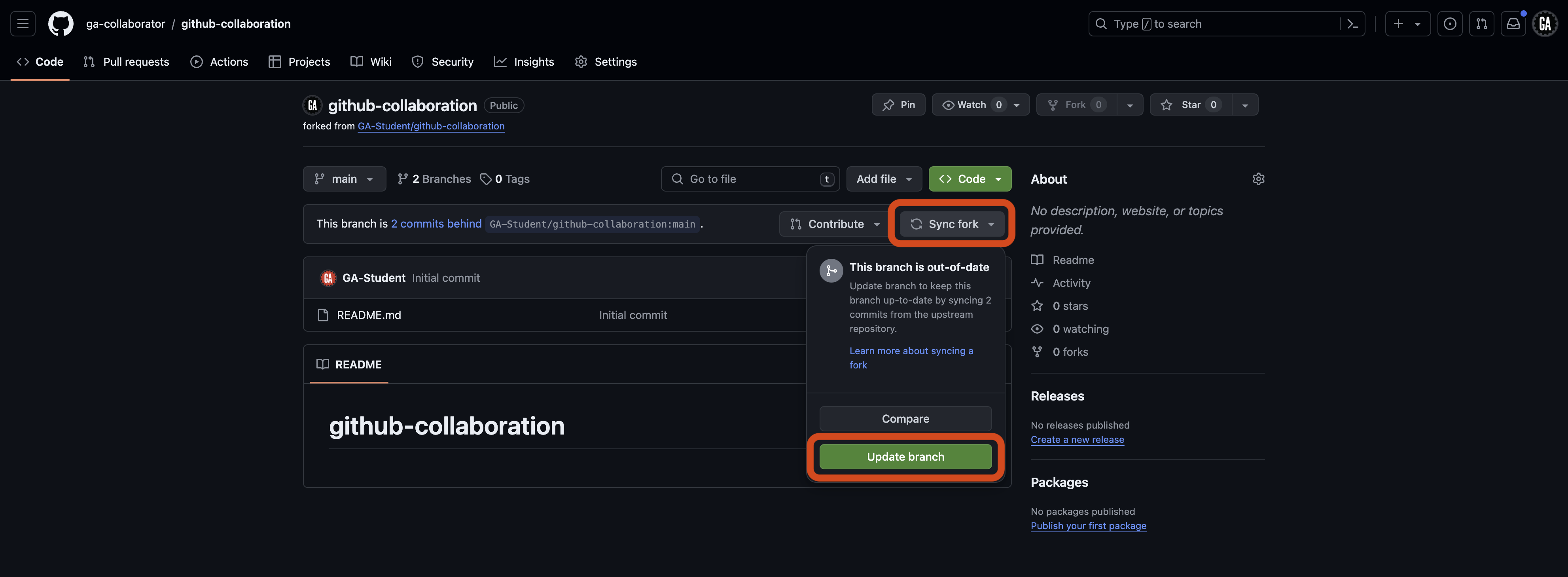
Bring it up to date by selecting the Sync fork button, followed by the Update branch button.
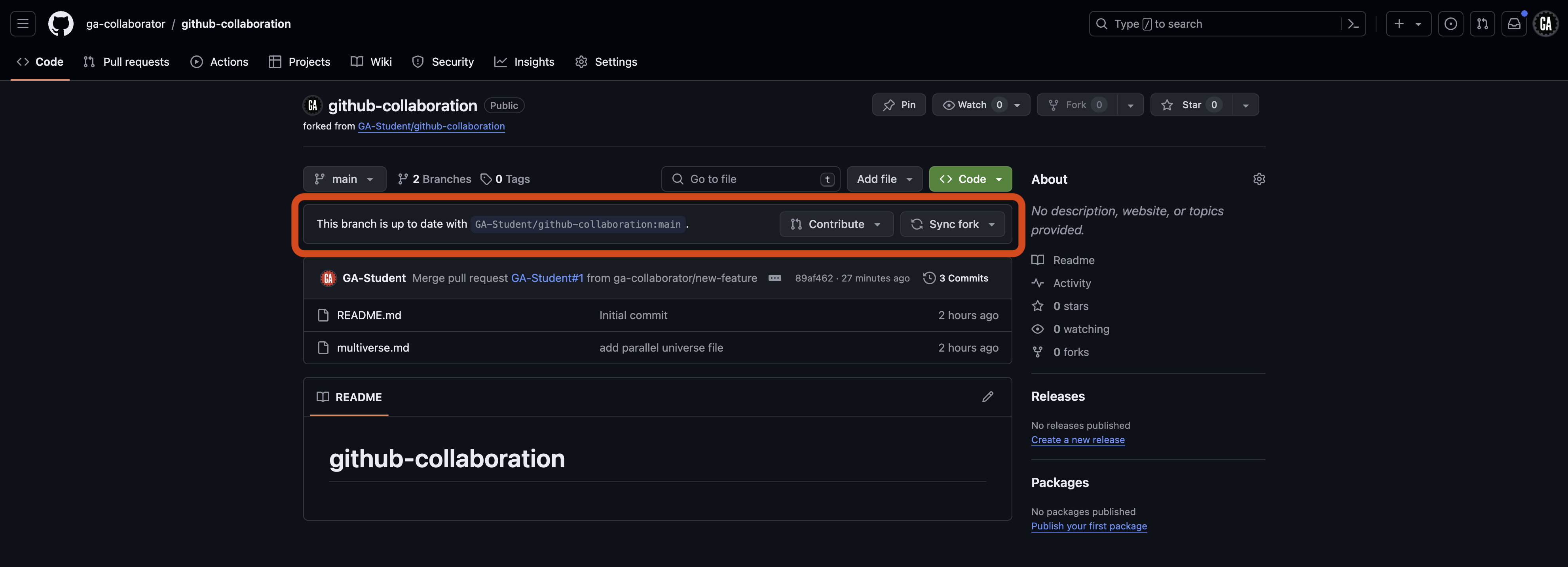
After a moment, the fork should update and indicate that it is up to date as shown below.
Return to your terminal in VS Code. If you have uncommitted work in a feature branch, commit your work first:
Checkout the main branch:
git checkout main
Then, pull the code from the main branch of your remote repo:
git pull origin main
Continue to the Creating and checkout a branch section below.
Creating and checkout a branch (GitHub managers and programmers)
⚠️ Both GitHub managers and programmers will do this.
Ensure you are in the main branch and have the most up to date code from the remote repository. You may need to commit the code in your current branch before you can switch to it.
git checkout main
git pull origin main
Modify the below command and run it to create a branch:
git branch <feature-branch-name>
🚨 Replace
<feature-branch-name>(including the<and>) in the above command with an appropriate branch name identifying the feature that the branch implements.
Because we were in the main branch when we created it, it will be created using the main branch as the starting point.
🚨 When collaborating you will not write code in the
mainbranch of a repsitory, ever. You will still interact with the main branch, but you will not write code there.
To switch to the new branch, use the below checkout command after modifying it:
git checkout <feature-branch-name>
🚨 Replace
<feature-branch-name>(including the<and>) in the above command with an appropriate branch name identifying the feature that the branch implements.
Write code (GitHub managers and programmers)
⚠️ Both GitHub managers and programmers should complete this task.
Write code as you normally would.
Stage and commit the changes:
git add -A
git commit -m "meaningful commit message"
Push to the remote repo (GitHub managers and programmers)
⚠️ Both GitHub managers and programmers should complete this task.
We need to push the branch to the remote repository to make it available on GitHub. Let’s do that now. In your terminal, run the following command after modifying it:
git push origin <feature-branch-name>
🚨 Replace
<feature-branch-name>(including the<and>) in the above command with an appropriate branch name identifying the feature that the branch implements.
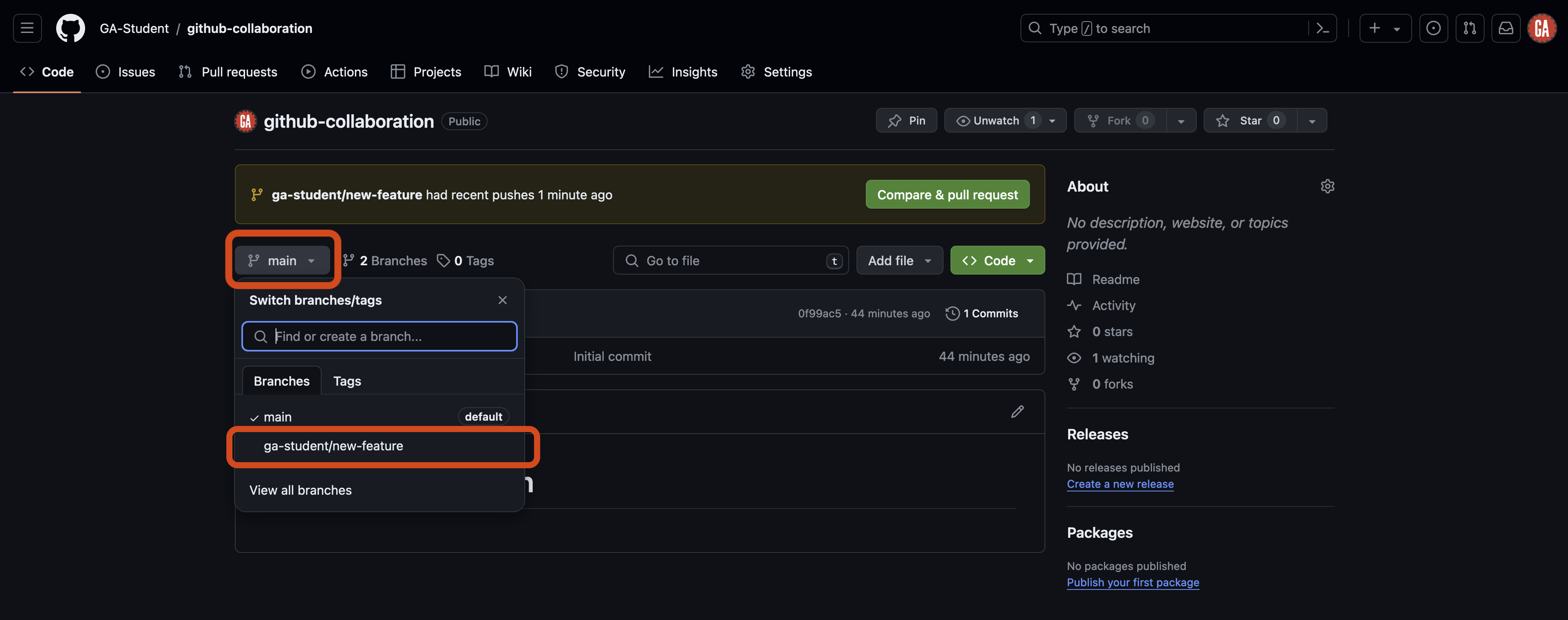
Creating a pull request (GitHub managers and programmers)
⚠️ Both GitHub managers and programmers should complete this task.
There are many different methods to create a pull request on GitHub. The steps outlined below will ensure a repeatable and consistent experience in as few steps as possible.
You will need:
- The GitHub manager’s GitHub username.
- The name of the repository you’re working in.
Navigate to this URL after making the necessary changes to it:
https://github.com/<github-username>/<repo>/compare
Replacing <github-username> (including the < and >) with the GitHub manager’s GitHub username and <repo> (including the < and >) with the repository name.
💡 When working on a project for a prolonged period, it is wise to bookmark this page for easy access!
You should arrive at a page similar to the one shown below.
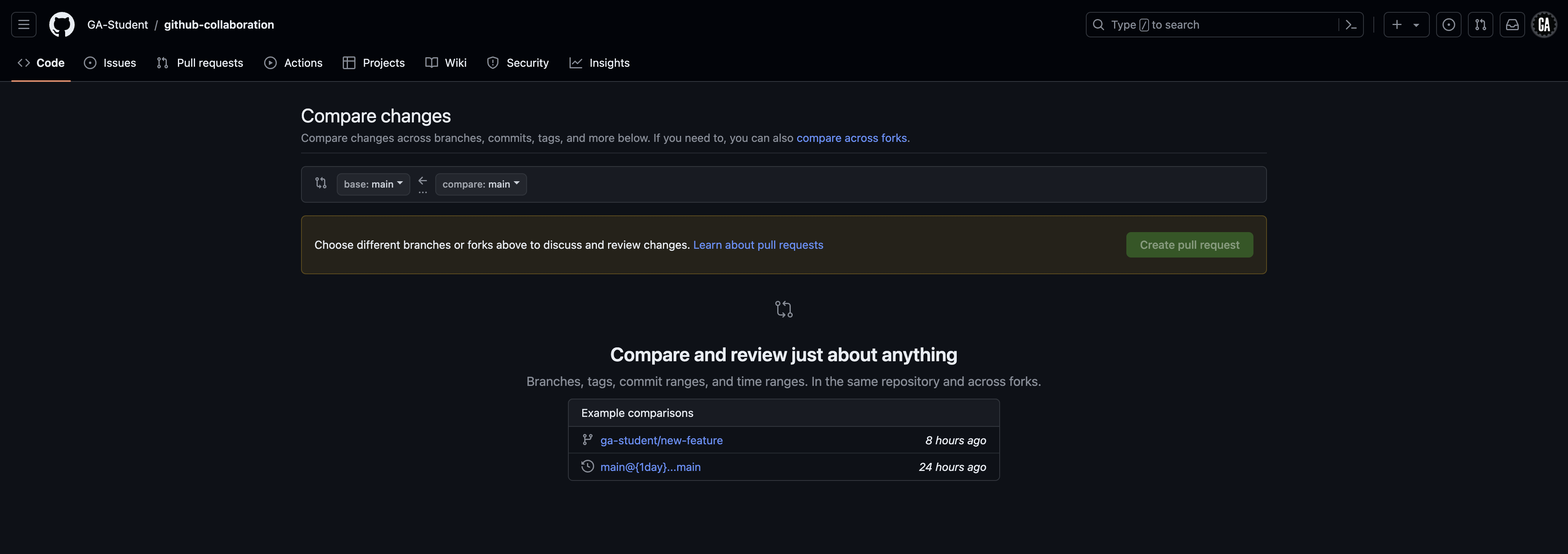
There are two paths from here. Your role on your team will determine which path you take.
- GitHub managers: Follow the instructions in the Comparing changes section below.
- Programmers: Follow the instructions in the Comparing changes across forks section below.
Comparing changes (GitHub managers )
⚠️ Only GitHub managers should complete this task.
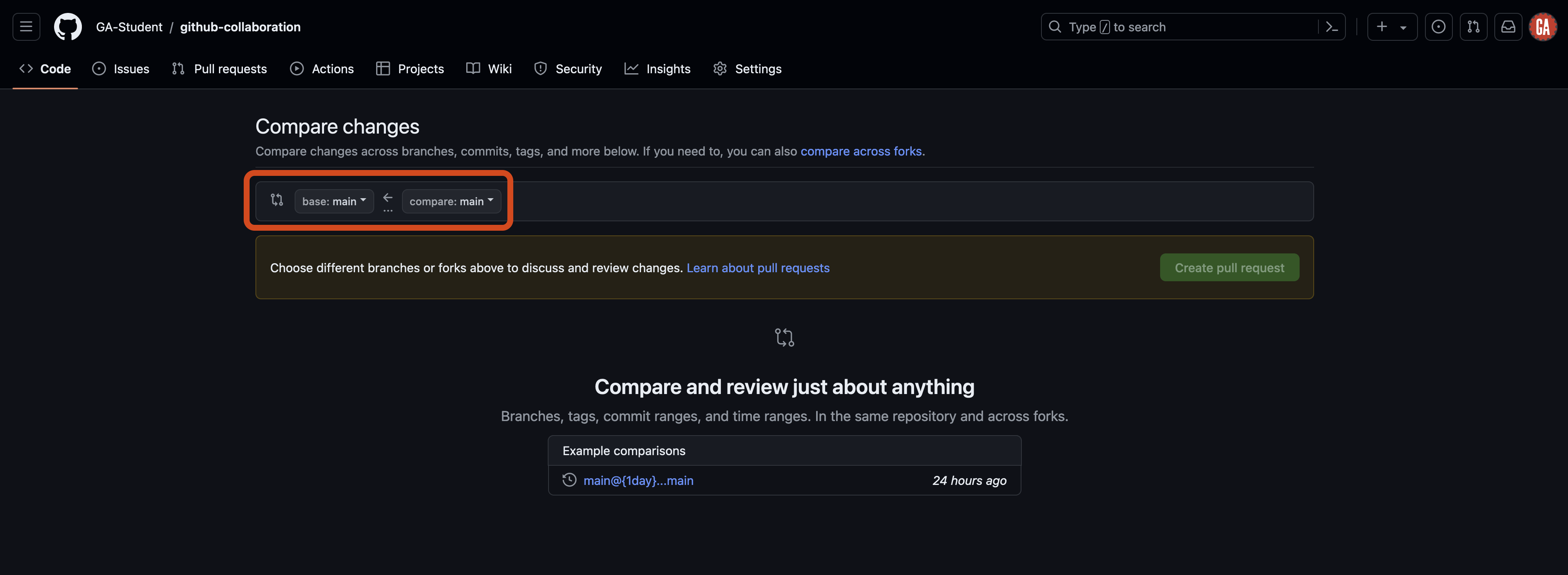
When you navigate to the pull request page, you will see the Comparing changes section. This section is where you will select the branches you want to compare. Two dropdowns in this section allow you to choose the base branch and the compare branch.
- Base branch - This is the branch you want to merge your changes into. This is typically the
mainbranch. - Compare branch - This is the branch you want to merge into the base branch. This is typically the feature branch you have been working on. In our case, it is
new-feature. Note the arrow going from the compare branch to the base branch - this indicates the flow of your code.
You can see these dropdowns outlined in red in the screenshot below.
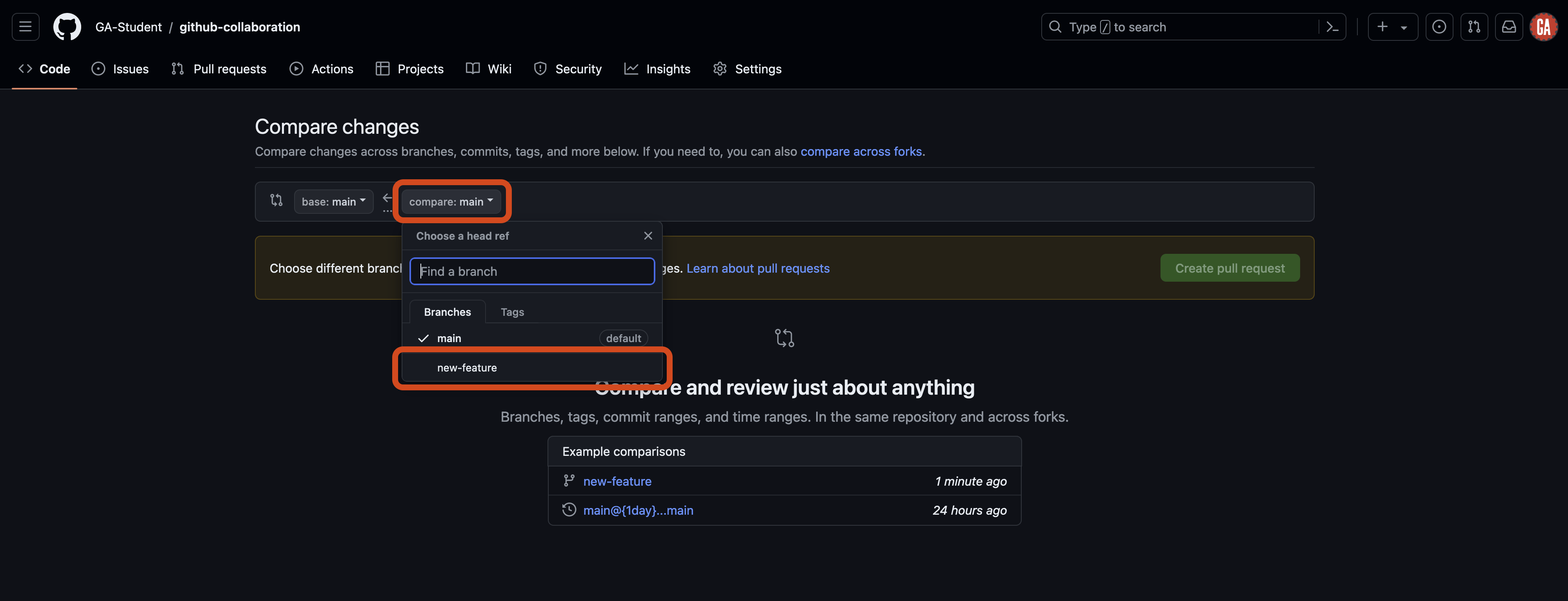
Select the compare dropdown, and select the branch you want to compare to the main branch. This is outlined in red in the screenshot below (although the branch name you want to compare to the main branch will be different). Note the search feature here - it may be necessary to use this when more branches are made in a repo.
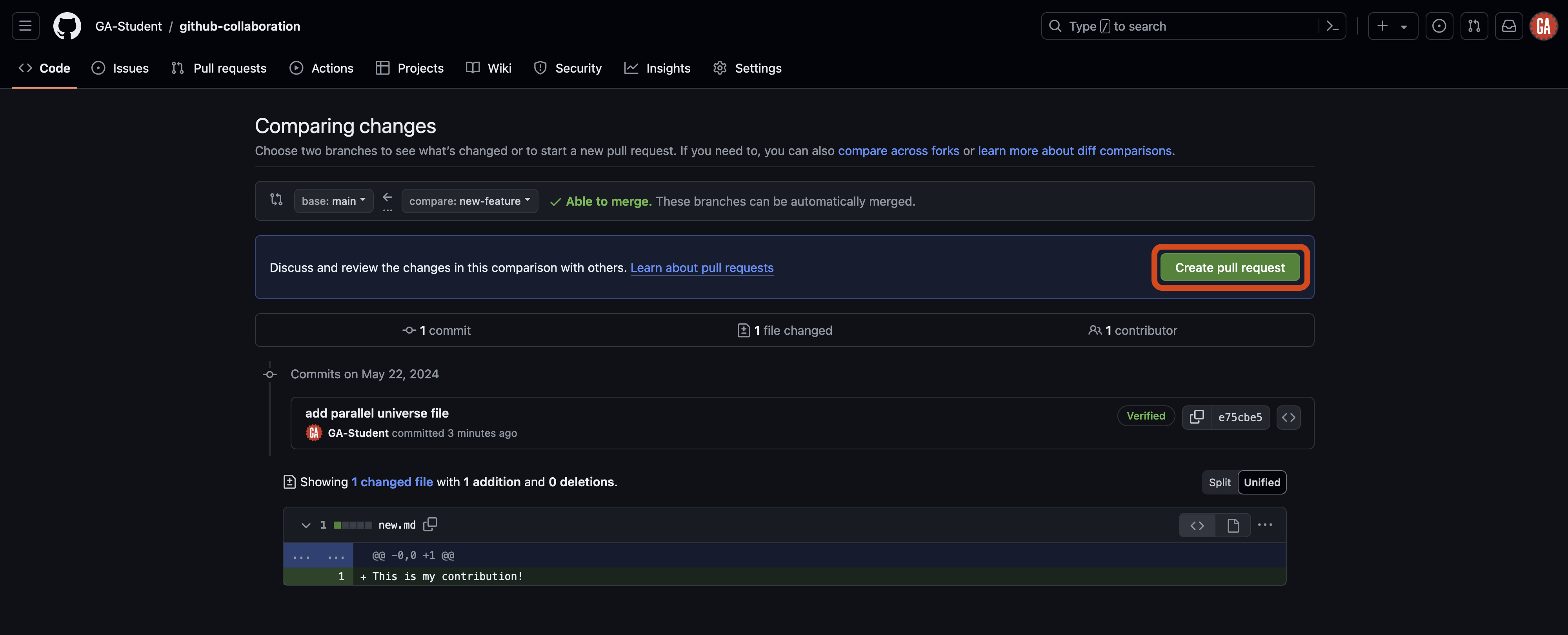
After selecting a branch, you’ll see the changes made if the pull request is merged. After you review the changes, select the Create pull request button outlined in red below.
Skip to the Open a pull request section below.
Comparing changes across forks (programmers )
⚠️ Only programmers should complete this task.
When you navigate to the pull request page, you will see the Comparing changes section.
We want to bring the code that currently only exists in your fork into the GitHub manager’s repo. This means we need to compare across forks. Select the compare across forks link outlined in red below.
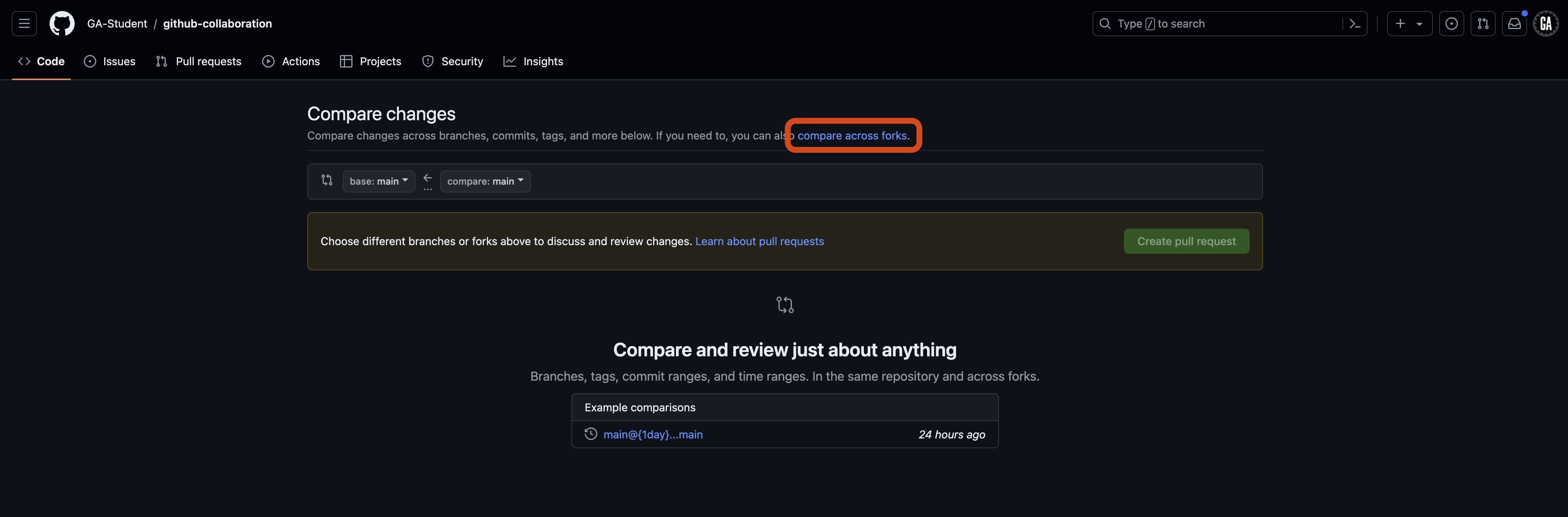
The UI below this link will change slightly. It should now look like the screenshot below. The area that has changed is outlined in red.
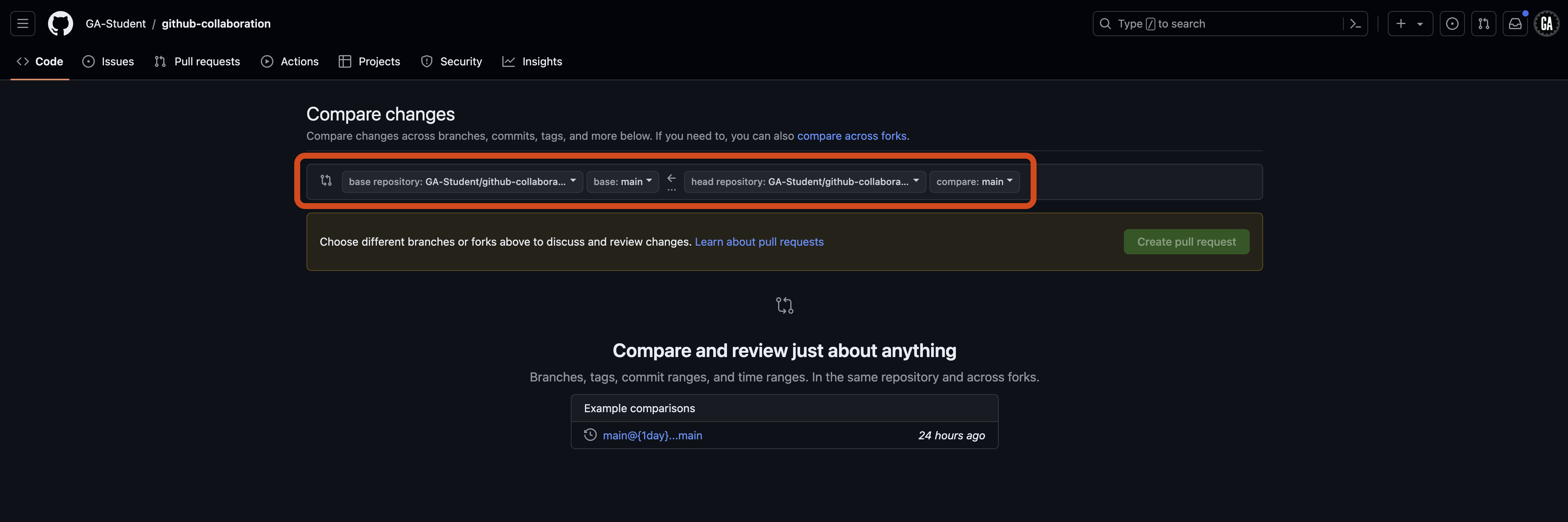
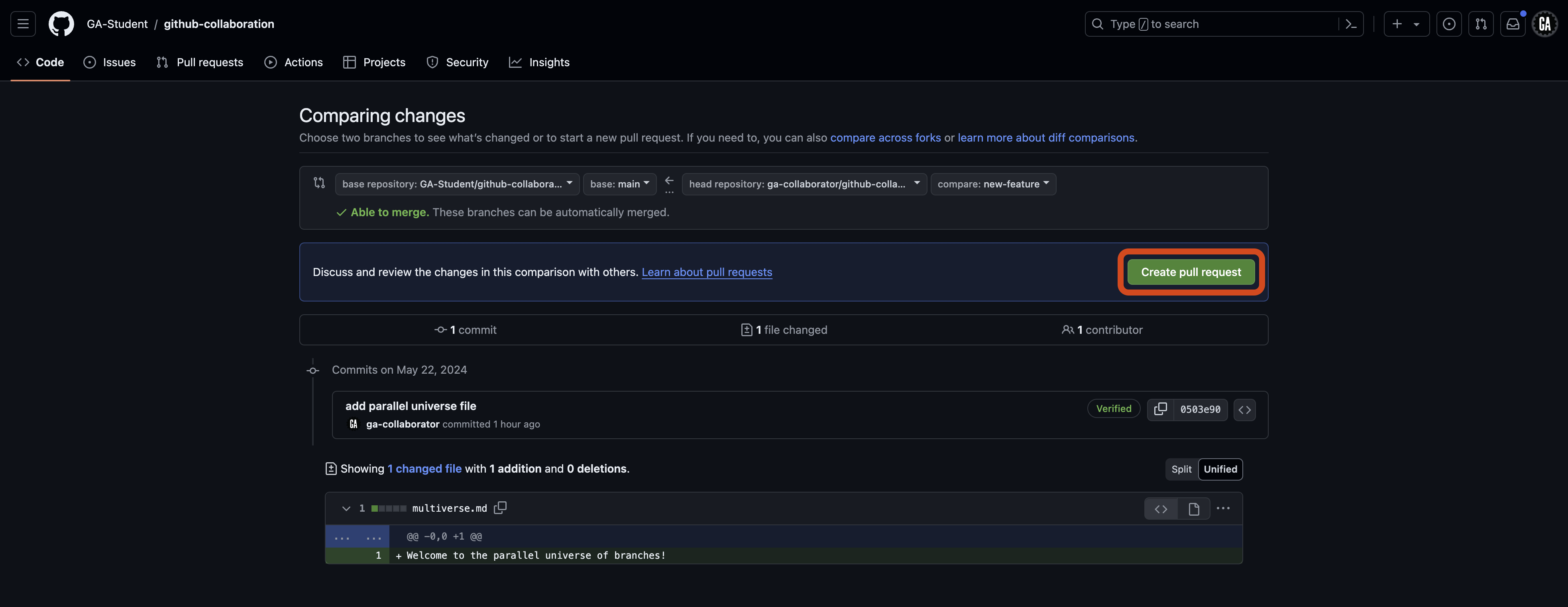
This section is where you will select the branches you want to compare. Four dropdowns, detailed below, allow you to choose the repositories and branches to compare.
- Base repository - This is the repository you want to contribute to. This should be the GitHub manager’s remote repo, which you originally forked from.
- Base branch - This is the branch you want to merge your changes into. This is typically the
mainbranch.
It is unlikely that you will need to modify these from their default value. However, you will likely need to alter the next two dropdowns:
- Head repository - This is the repository you want to contribute code from. This is your own programmer’s remote repo (forked from the GitHub manager’s repository).
- Compare branch - This is the branch you want to merge into the base branch. This is typically the feature branch you have been working on. Note the arrow going from the head repository/compare branch to the base repository/base branch - this indicates the flow of your code.
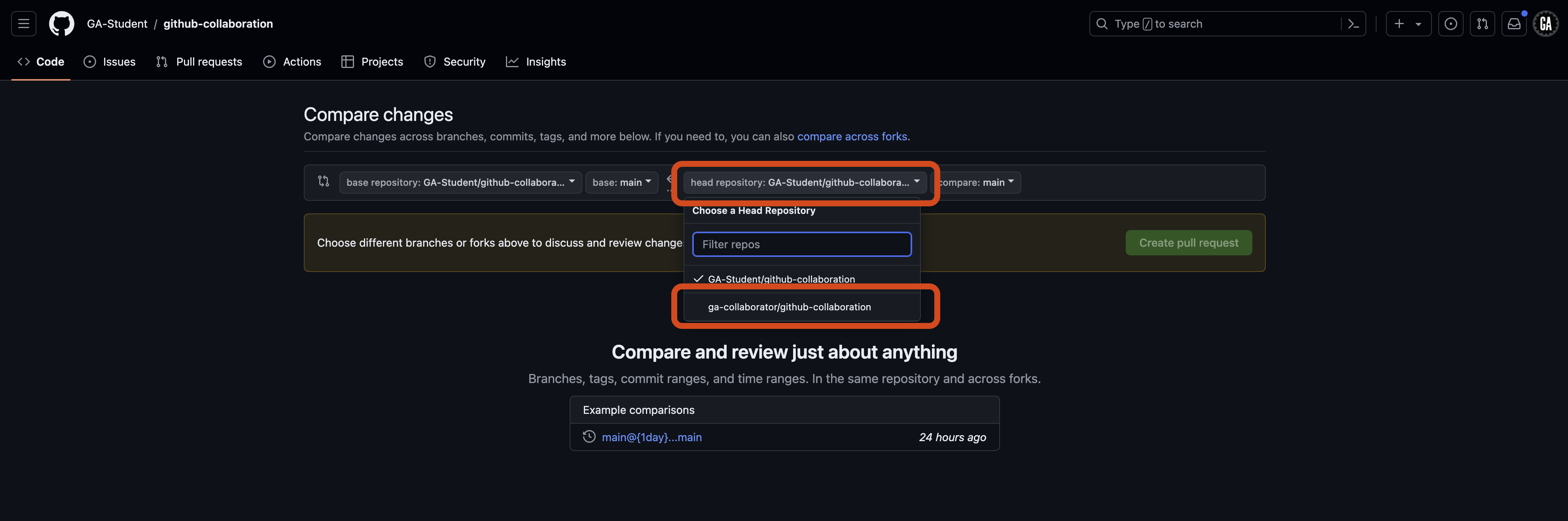
Select the head repository dropdown, and choose the <your-username>/github-collaboration repository, replacing <your-username> (including the < and >). This is outlined in red in the screenshot below (although the repository name you want to use will be different).
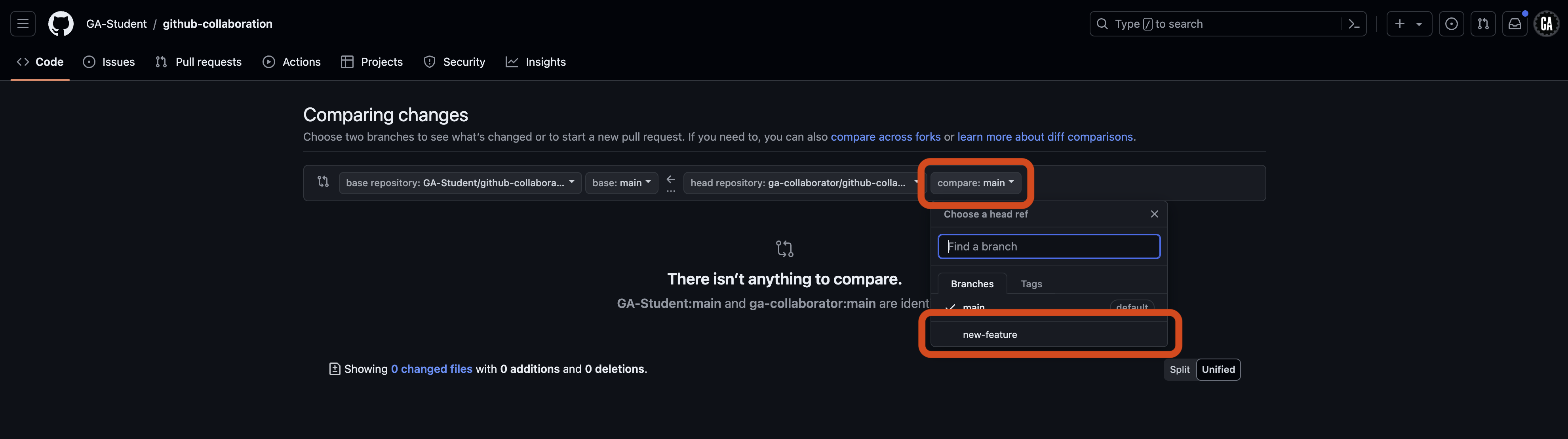
Select the compare dropdown, and select the branch you want to compare to the main branch in the base repo. An example is outlined in red in the screenshot below, but yours will be different. Note the search feature here - it may be necessary to use this when more branches are made in a repo.
After selecting a branch, you’ll see the changes made if the pull request is merged. The screenshot below shows that there will be one changed file. After you review the changes, select the Create pull request button outlined in red below.
Continue to the Open a pull request section below.
Open a pull request (GitHub managers and programmers)
⚠️ Both GitHub managers and programmers should complete this task.
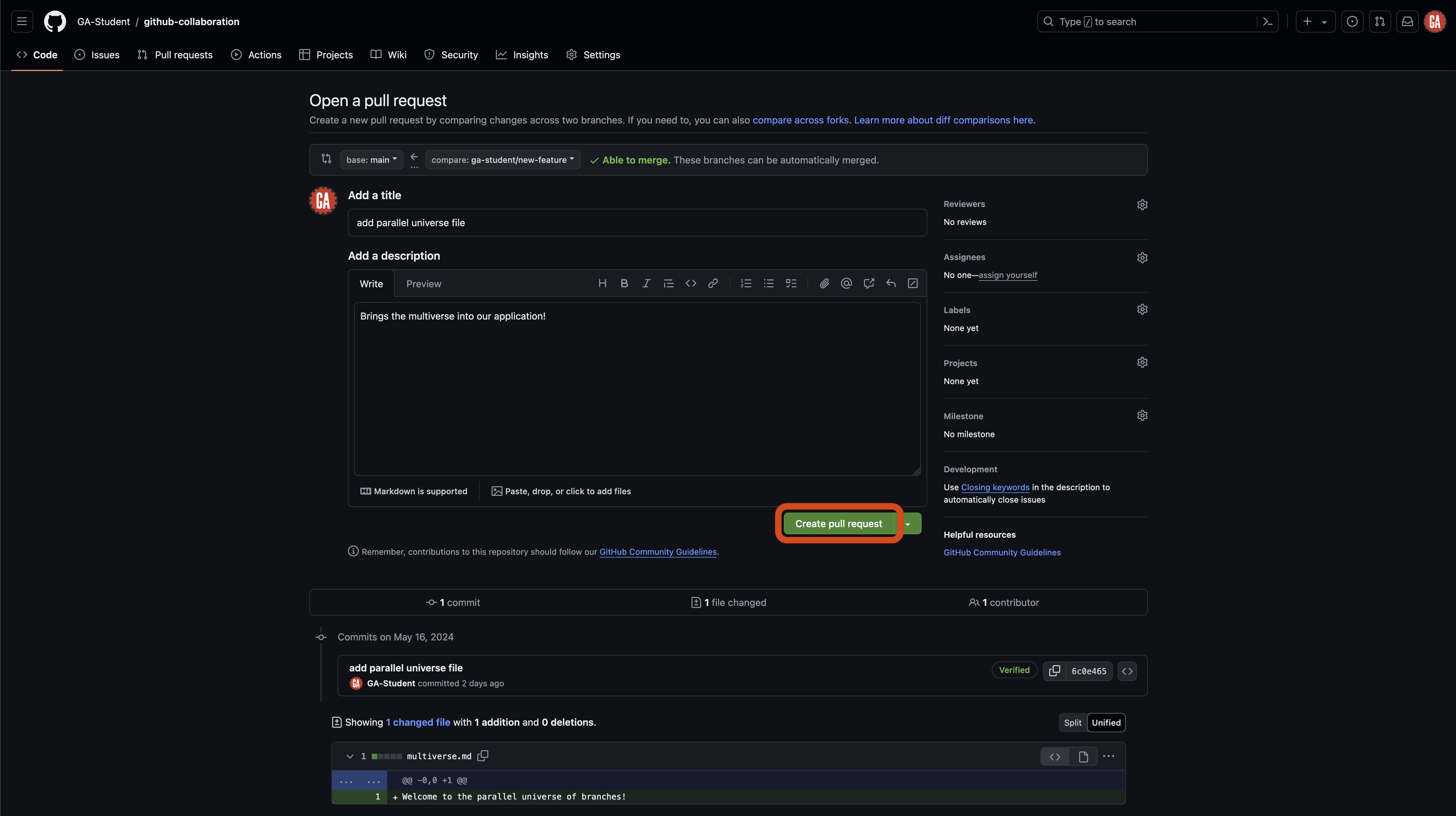
You’ll be taken to a new page where you can open your pull request. Here, you will give your pull request a title and brief summary.
After setting up the title and description and selecting the branches you want to compare, select the Create pull request button as outlined in red below. This will create the pull request and take you to the pull request page.
Merging remotely (GitHub managers)
⚠️ Only GitHub managers should complete this task. Technically, any collaborator on the repository can complete this task, but many teams find it best to have one person in charge of this work to ensure a consistent experience.
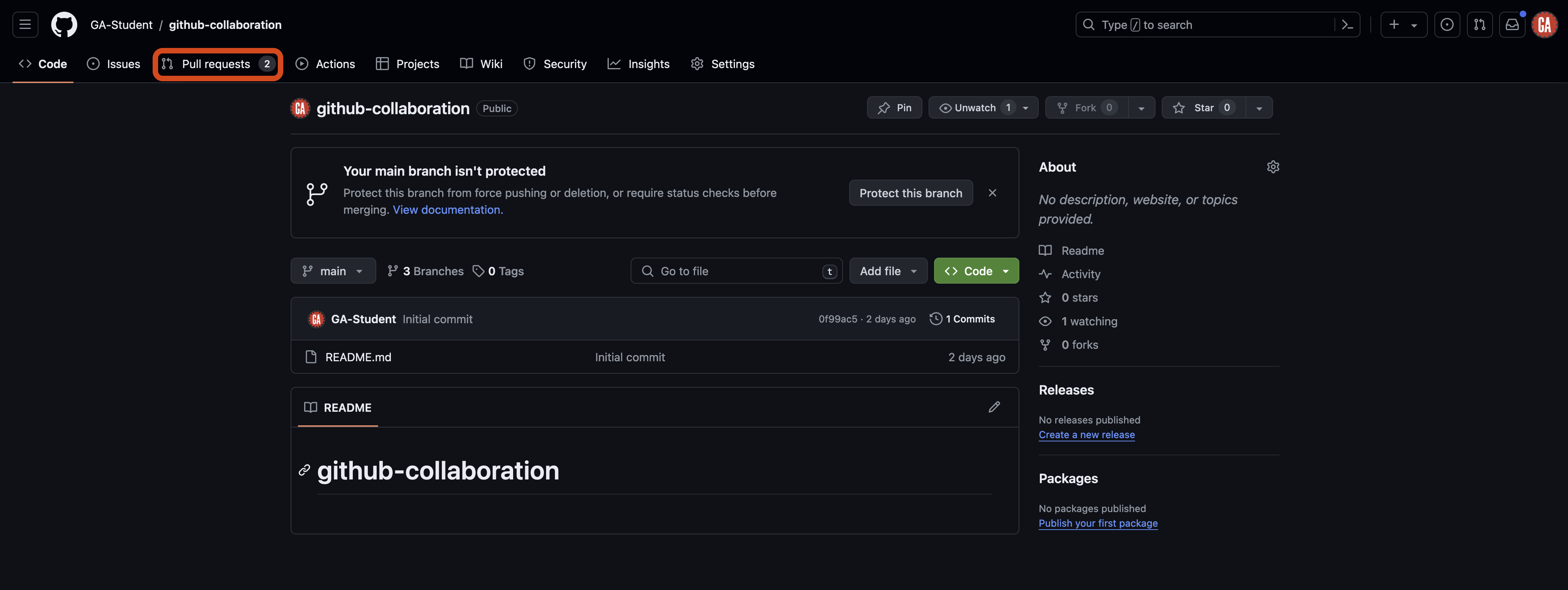
On GitHub, navigate to the repository and select the Pull requests tab outlined in red below.
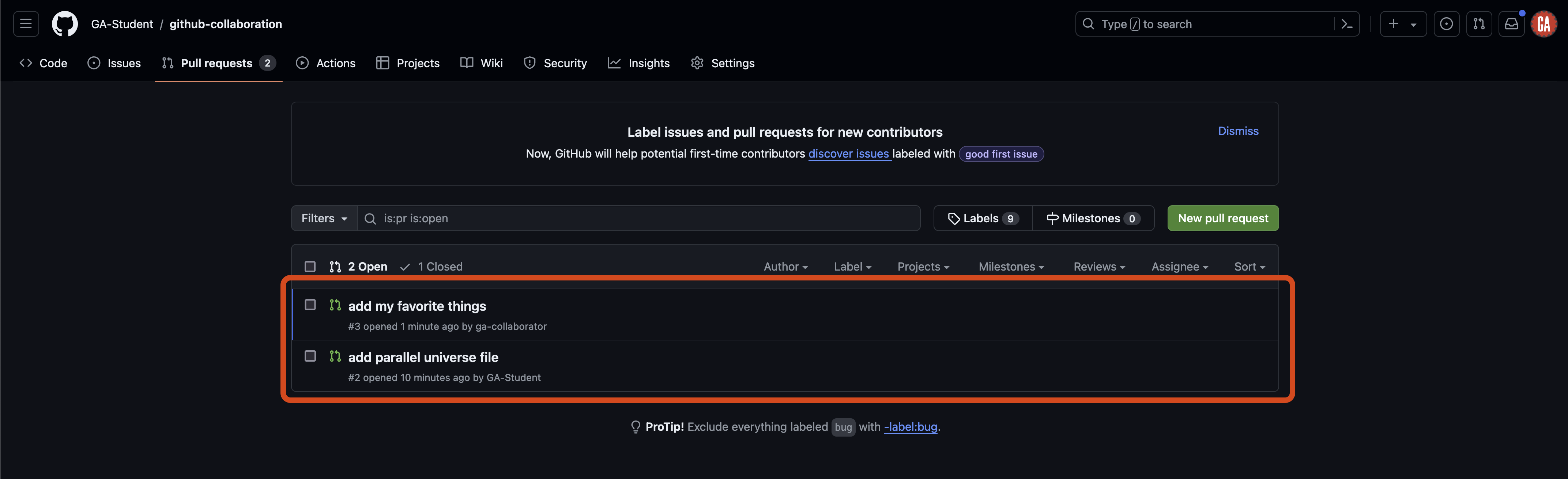
Once on the Pull requests tab, select an open pull request you would like to review as shown outlined in red below:
You’ll be taken to a page to view the pull request on:
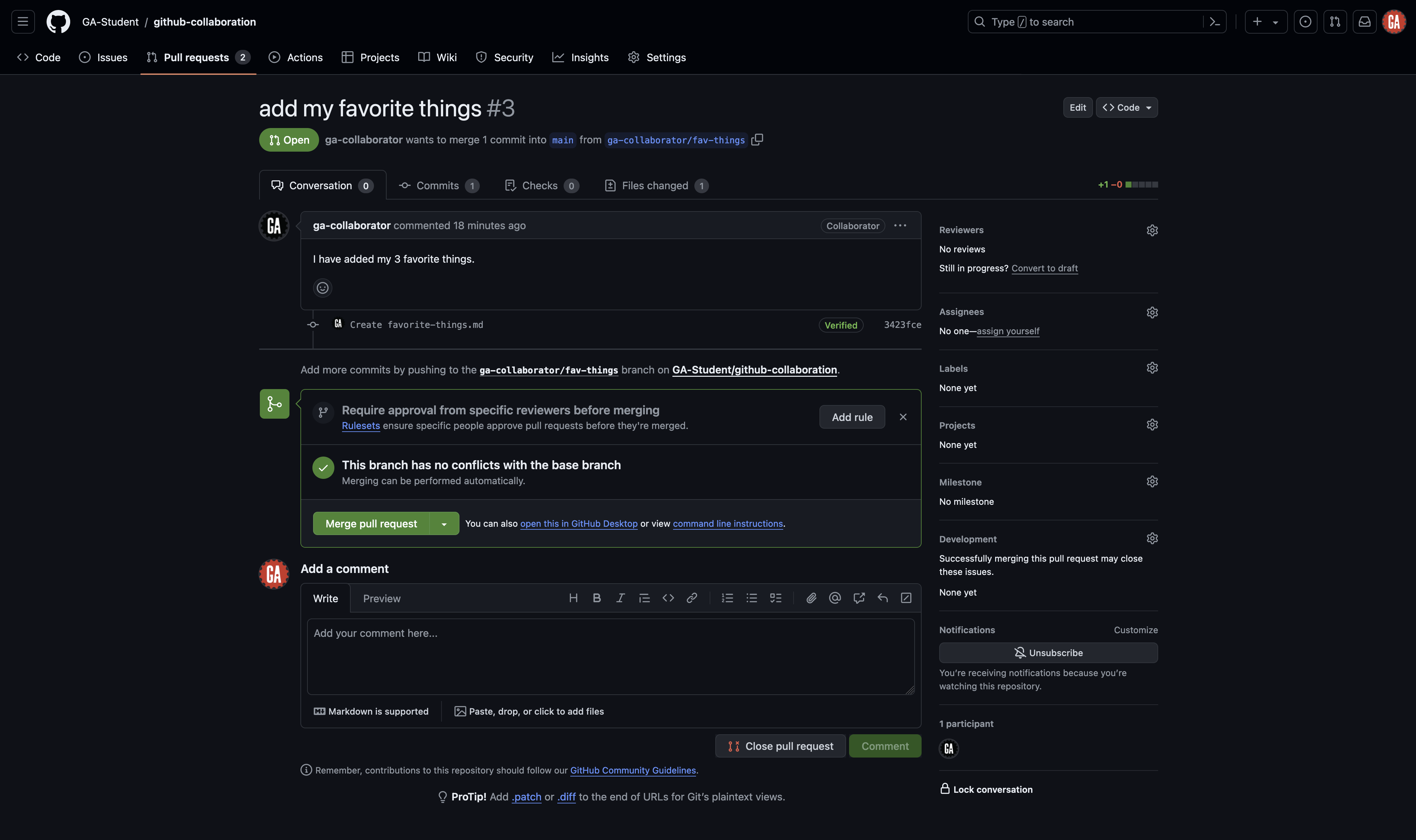
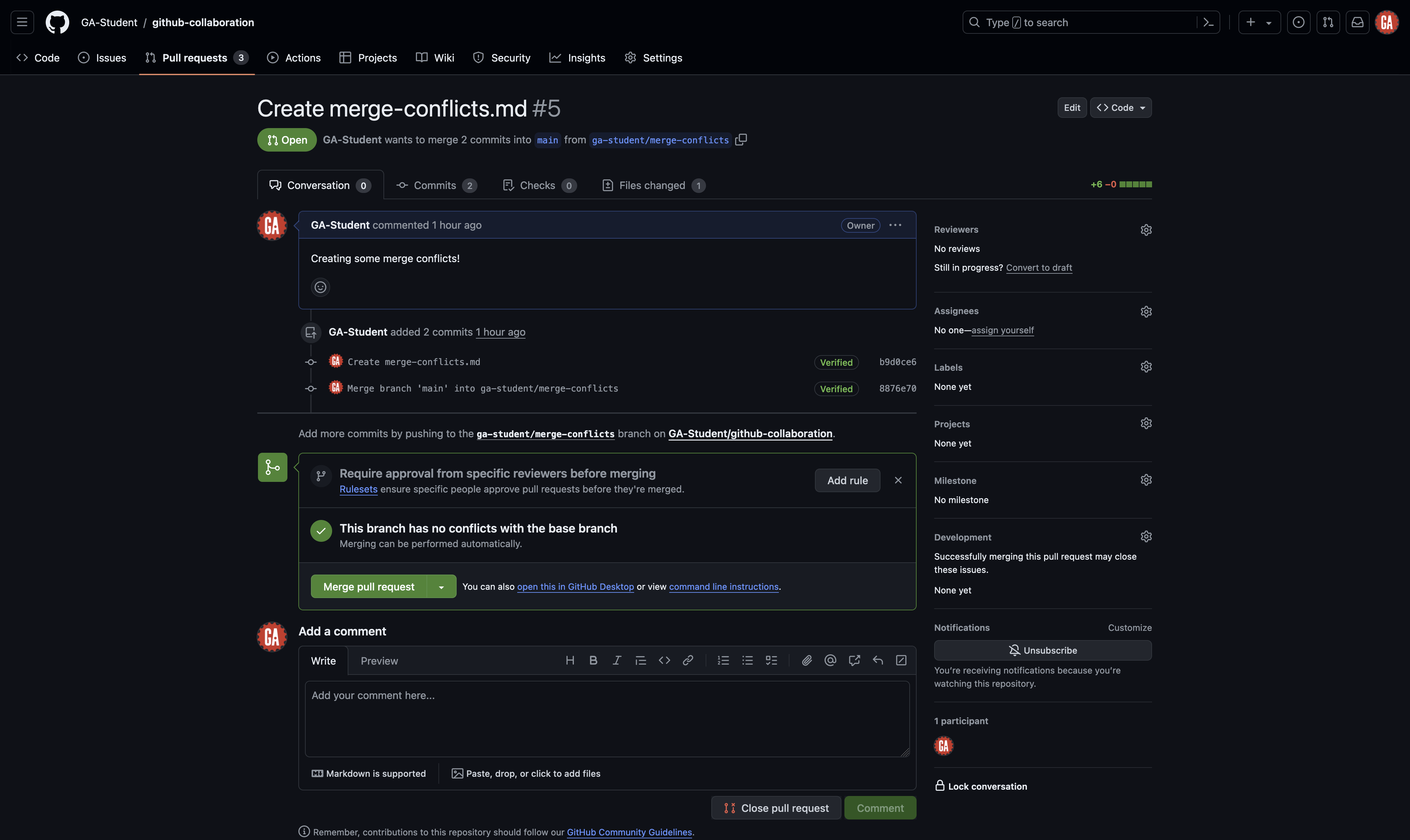
Review the pull request. If there are changes that need to be made (for example if there are merge conflicts), reach out to the person who made the pull request and have them make those changes. Make sure they inform you when those changes are complete.
If everything looks good, select the Merge pull request button.
Inform your team members that changes have been made so that everyone on the team can complete the Merging locally section below.
Merging locally (GitHub managers and programmers)
⚠️ Both GitHub managers and programmers should complete this task.
Refer to the Ensure you have the most recent code (GitHub managers and programmers) section to get the most updated code to the main branch of the local repo.
After doing that, you can take two different paths. You will typically only choose one of these paths each time you’ve pulled code from the main branch of the remote repository:
- Create a new branch: Do this if you are ready to start working on a new feature.
- Checkout an existing feature branch: Do this if you have paused work on a feature and still have more work to do with it.
See the sections below for more details on what action to take for each path.
Create a new branch
Use the same command you used to create a branch before:
git branch <feature-branch-name>
🚨 Replace
<feature-branch-name>(including the<and>) in the above command with an appropriate branch name identifying the feature that the branch implements.
You can now do work in this branch and continue contributing as normal.
Checkout an existing feature branch
Checkout the existing feature branch:
git checkout <feature-branch-name>
🚨 Replace
<feature-branch-name>(including the<and>) with the name of the branch you’ve been working in.
Bring the latest code into the feature branch so that you can use it:
git merge main
This command brings the changes in the main branch into your feature branch.
Fixing merge conflicts (GitHub managers and programmers)
⚠️ Both GitHub managers and programmers should complete this task.
Refer to the Ensure you have the most recent code (GitHub managers and programmers) section to get the most updated code to the main branch of the local repo.
Whether you are a programmer or a GitHub manager, the main branch of your local repo will now contain the same code as the main branch of the GitHub manager’s remote repo.
Checkout the existing feature branch:
git checkout <feature-branch-name>
🚨 Replace
<feature-branch-name>(including the<and>) with the name of the branch that is currently unable to merge with themainbranch.
Bring the latest code into the feature branch so that you can use it:
git merge main
This command brings the changes in the main branch into your feature branch. Or it would, but you’ll notice there is an error in your terminal. Yours will look different than this - this is just an example:
Auto-merging <file>
CONFLICT (add/add): Merge conflict in <file>
Automatic merge failed; fix conflicts and then commit the result.
The error message points out a merge conflict. To proceed, we need to fix those conflicts and then commit the result.
Before going any further, close any open file tabs in VS Code and run the git status command, and let’s observe what we see.
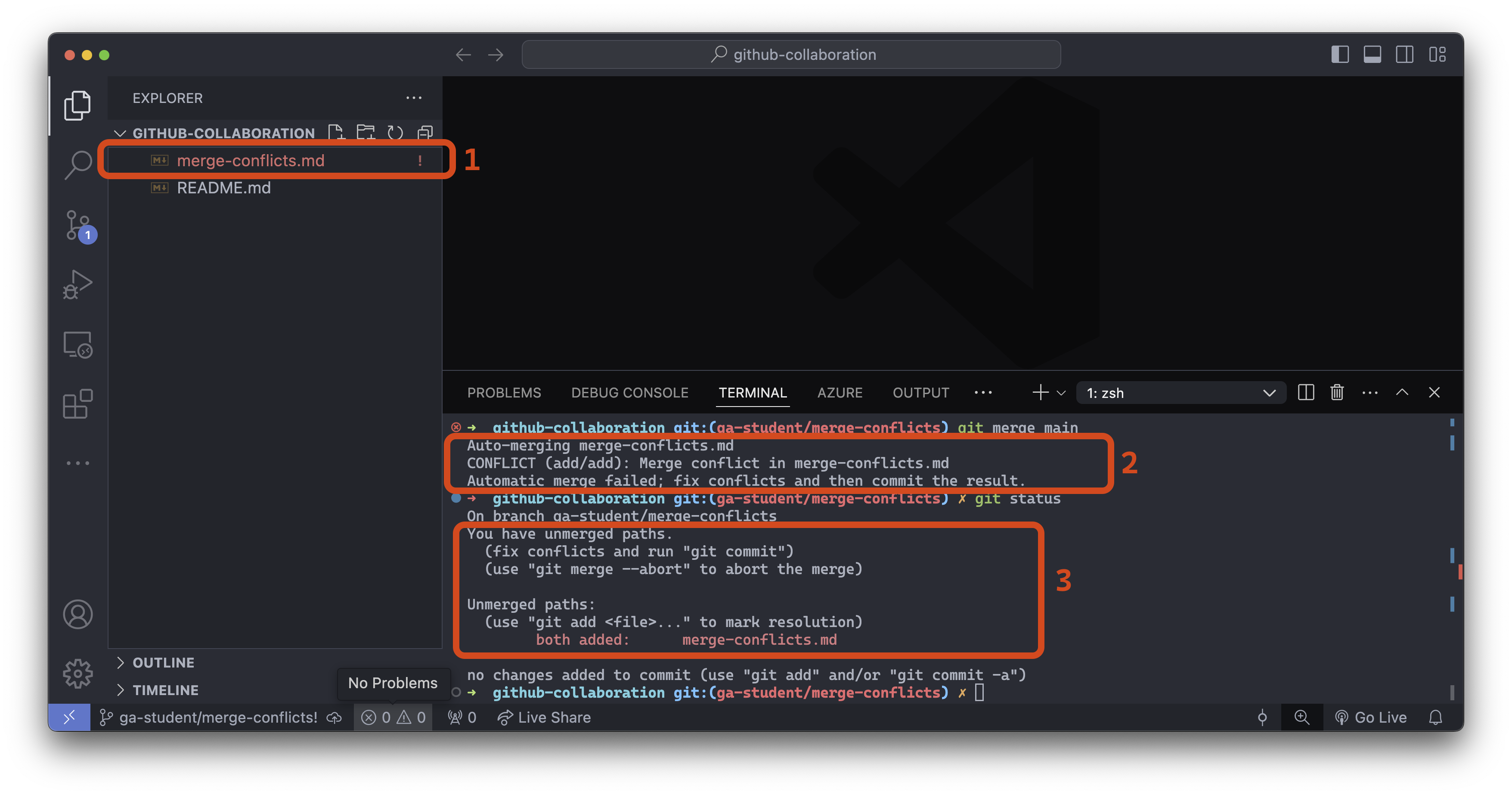
- File explorer: The VS Code file explorer marks any file with merge conflicts using red/orange text and an
!to the right of the file name. - Merge error message: Informs us that the automatic merge failed and the specific files it failed for.
- The output of
git status: Informs us we have unmerged paths (the merge was unsuccessful).
Once, we’ve identified the problem files, open each one and fix it the conflicts.
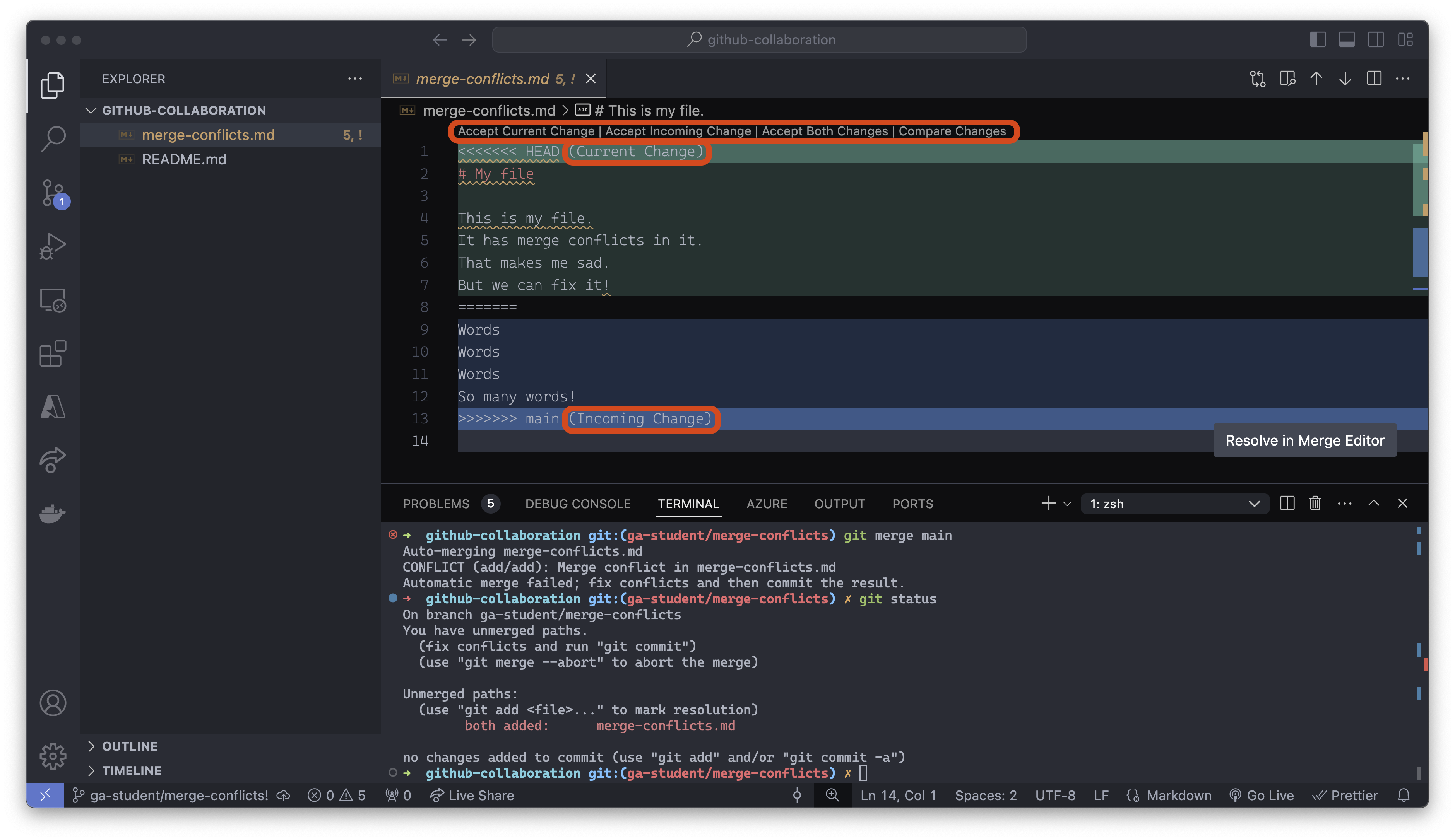
VS Code is helping us here. There are buttons above line one that are shortcuts to resolving this conflict. We can quickly accept the current change, accept the incoming change, or accept both changes. You can also take a more nuanced approach and change the text directly to resolve the conflict manually.
🚨 Be cautious about the changes made here - sometimes, this process can introduce bugs into your code that you must resolve manually!
After you’ve resolved the merge conflict, you should add, commit, and push the branch to your remote repo on GitHub. The GitHub manager should now be able to merge the pull request!