Intro to Asynchronous Programming
Intro to the Fetch API
Learning objective: By the end of this lesson, students will understand the basics of the Fetch API in JavaScript and how to make fetch requests.
What is the Fetch API?
We have two methods of generating HTTP requests in HTML: navigating using links and submitting forms.
JavaScript allows us to make HTTP requests from our application without relying on these two mechanisms. Using the Fetch API, any action in JavaScript can make HTTP requests.
The Fetch API facilitates communication between a client and a server, allowing the application (acting as a client) to generate requests and process responses. The primary function provided by the API is the fetch() method.
Anatomy of the fetch() method
The fetch() method takes two parameters:
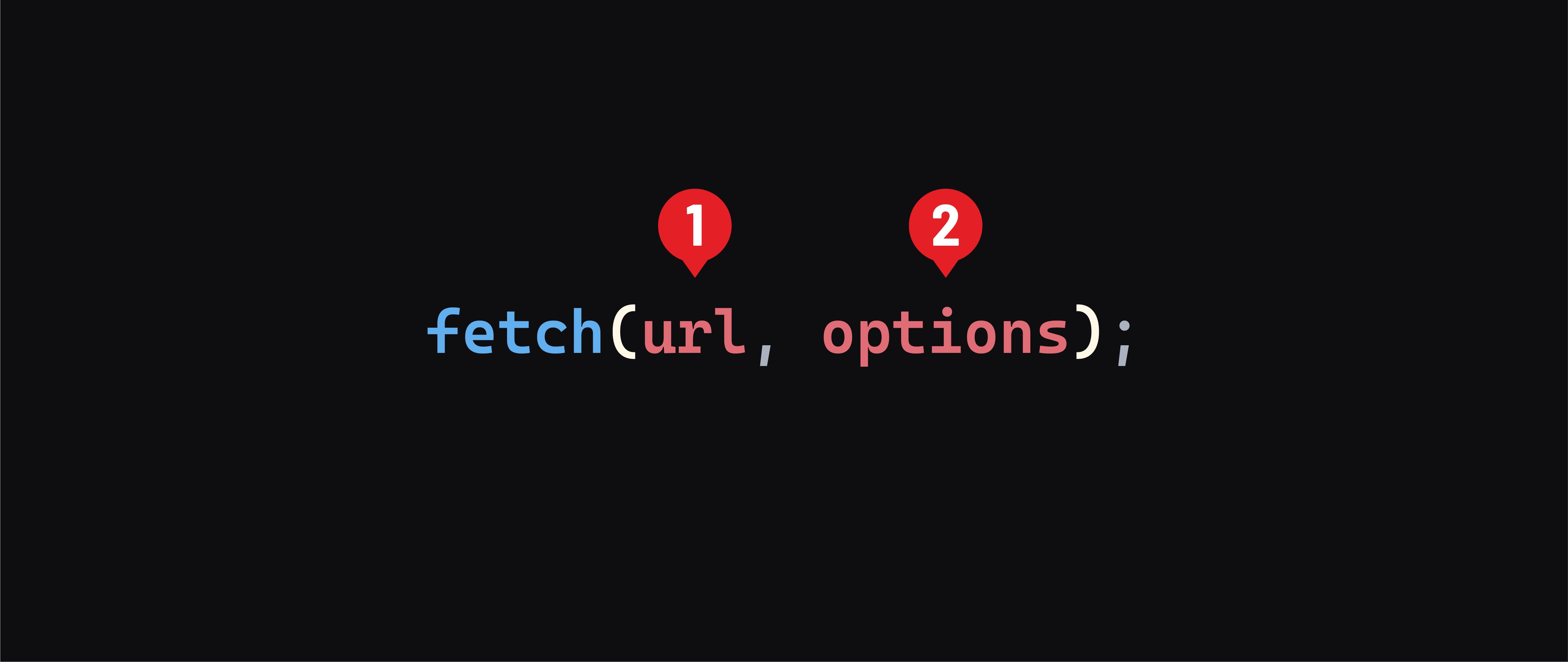
- A URL to the resource you want (the MDN docs refer to this as the
resource, but this will always be a URL for our purposes.) - An optional options object. The MDN docs have documentation for all of the valid properties in this object. The most common ones are covered in more detail below.
Let’s take a look at how a basic fetch request is typically constructed:
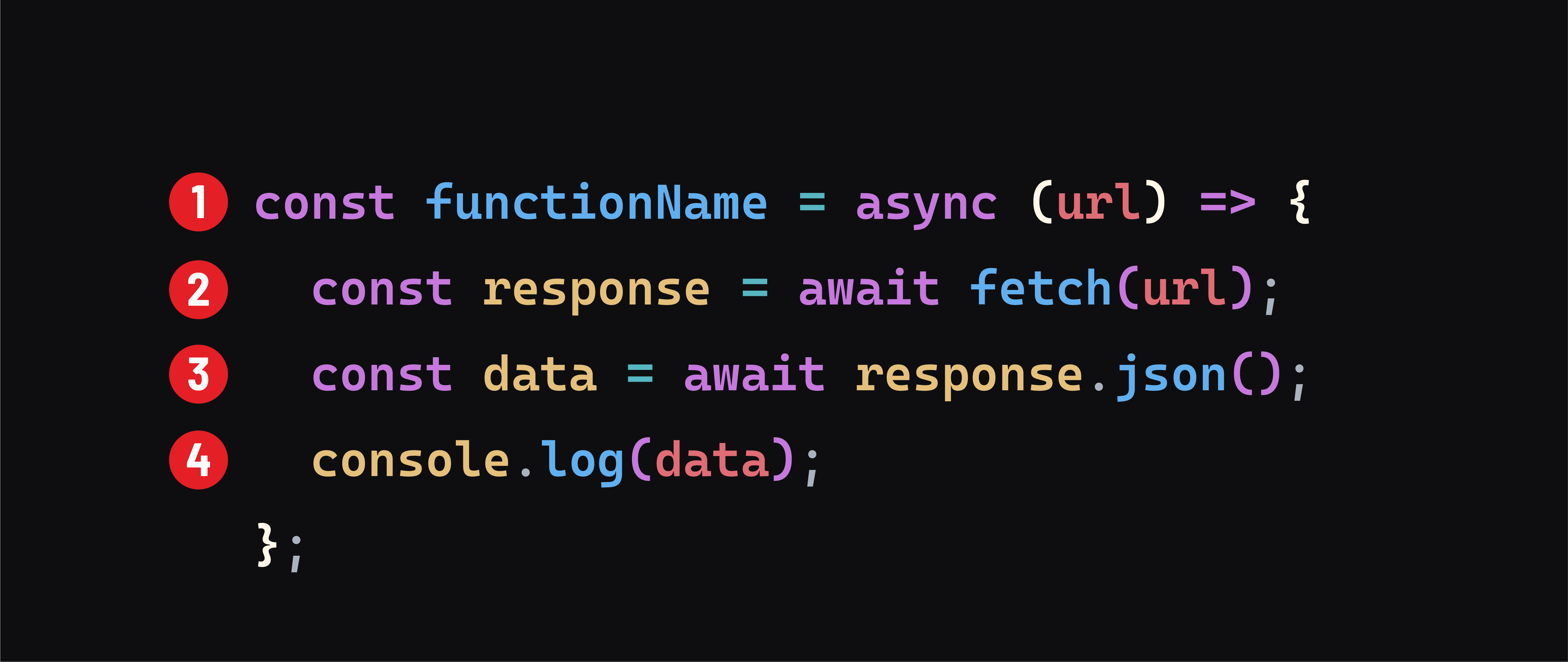
- We define an asynchronous function called
functionNamethat will accept a URL as an argument. Like any other function, the name we select does not impact how it behaves, but the name should describe what action the function carries out for readability. - We use
fetch()to make aGETrequest to the specified URL inside the function. Sincefetchis asynchronous, we must useawaitto pause the execution of this function until we receive a response. This is necessary because we can’t process data we don’t have yet. - Next, the response is converted into a JavaScript object using the
json()method. This step is also asynchronous, so we again use theawaitoperator. - Finally, the fetched data is logged to the console.
📚 The
json()method converts the JSON text in thebodyof a response object to a JavaScript object. It’s typically applied to the response object returned by the afetch()to handle JSON data sent from a server.JSON, short for JavaScript Object Notation, is a common format for storing and transporting data across the internet. It’s structure closely resembles a JavaScript object.
The options object
The options object allows you to apply various settings to a request made with the fetch method. Some of the most common properties for the options object include:
method
The method property is used to specify the request’s HTTP method (GET, POST, PUT, DELETE, etc.). If no HTTP method is provided, the default GET method is used.
headers
The headers property is used to set HTTP headers for the request. HTTP headers include additional information about the request, such as the type of data being submitted.
body
The body property includes any data, such as information entered into a form. Here’s an example that utilizes the method, headers, and body property.
fetch(url, {
  method: 'POST',
  headers: { 'Content-Type': 'application/json' },
  body: JSON.stringify({ greeting: 'Hello World!' })
});
💡 In the example above, the
JSON.stringify()method converts the JavaScript object into aJSONstring. Whenever we putJSONinto the request’sbody, we must also set theheadersproperty as demonstrated above:headers: { 'Content-Type': 'application/json' }.
Making a fetch request
Let’s make a fetch request using an API called JSONPlaceholder, which is used for testing and prototyping.
They provide six resources we can get data for - we’ll use the users resource, which will give us an array of 10 random placeholder user objects.
First, let’s define the API endpoint we will be using:
const usersApiUrl = 'https://jsonplaceholder.typicode.com/users/';
📚 In the context of an API call, an endpoint refers to a specific URL where you can access or interact with a resource. In this case, we’re accessing data at this endpoint.
In the next step, we’ll create a function to make a GET request to this endpoint to access the users resource.
Defining a fetch function
Add the following code to app.js:
const getAllUsers = async (url) => {
  try {
    const response = await fetch(url);
    const data = await response.json();
    console.log(data);
  } catch (error) {
    console.log(error);
  }
};

getAllUsers(usersApiUrl);
Let’s break down this code:
In this example, we are defining an async function called getAllUsers. The function accepts a URL as an argument.
First, note our try...catch block. We’re telling our app to attempt the fetch request, and if anything goes wrong along the way, catch the error and console.log() it.
Inside the try block, fetch() is called, and the url parameter is passed to it. We wait for a response and then turn the JSON on the response’s body into usable data. We then console log this data.
When we run our code, our console should display something like the array below:
[
  {
    id: 1,
    name: 'Leanne Graham',
    username: 'Bret',
    email: 'Sincere@april.biz',
    address: {
      street: 'Kulas Light',
      suite: 'Apt. 556',
      city: 'Gwenborough',
      zipcode: '92998-3874',
      geo: [Object]
    },
    phone: '1-770-736-8031 x56442',
    website: 'hildegard.org',
    company: {
      name: 'Romaguera-Crona',
      catchPhrase: 'Multi-layered client-server neural-net',
      bs: 'harness real-time e-markets'
    }
  },
  // more data
]