Intro to HTML Nesting Elements
Learning objective: By the end of this lesson, learners will be able to construct nested HTML elements and identify the parent-child and ancestor-descendant relationships for web page organization.
Nesting elements
Elements can also be placed inside one another, like how we placed the <h1> element inside the <body> element above. This is called nesting.
<body>
  <h1 id="title">HTML Content!</h1>
</body>
We can continue nesting elements inside of one another.
<body>
  <h1 id="title">HTML Content!</h1>
  <div>
    <h2>The big idea</h2>
    <p>HTML lets us structure content!</p>
  </div>
</body>
Here, we’ve nested a <div> inside the <body>. <div> is a generic container element used to group content together. Inside of the <div>, there is an <h2> and a <p> element. The <p> element represents a paragraph of text.
You must indent nested elements. Properly indenting elements makes the markup far more readable and less prone to errors.
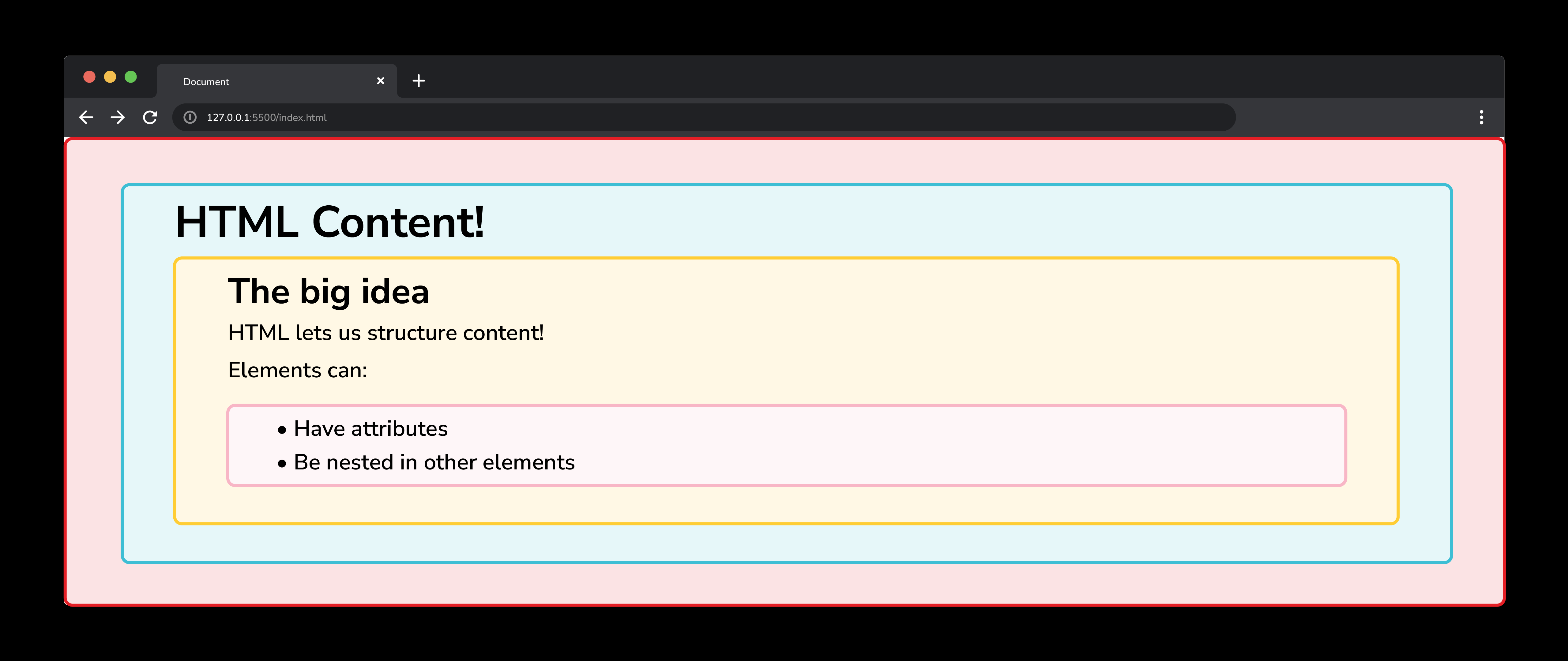
Some elements, like the list item <li> element, must be nested inside another element, like the unordered list <ul> element. For example:
<body>
  <h1 id="title">HTML Content!</h1>
  <div>
    <h2>The big idea</h2>
    <p>HTML lets us structure content!</p>
    <p>Elements can:</p>
    <ul>
      <li>Have attributes</li>
      <li>Be nested in other elements</li>
    </ul>
  </div>
</body>
🧠 Above, nested elements all have their own line, but this is not strictly required. Here’s an example of a
<p>element with text and a nested<span>element all on the same line:<p>Have a <span>great</span> day!</p>
Nested relationships

When elements are nested, they form relationships with one another.
- Descendant / Ancestor: An element is a descendant if it is nested anywhere within its ancestor.
- Child / Parent: An element is a child if it is a direct descendant of its parent.
- Siblings: Two or more elements are siblings if they have the same parent.
Visualizing this with a family tree-like view may help.
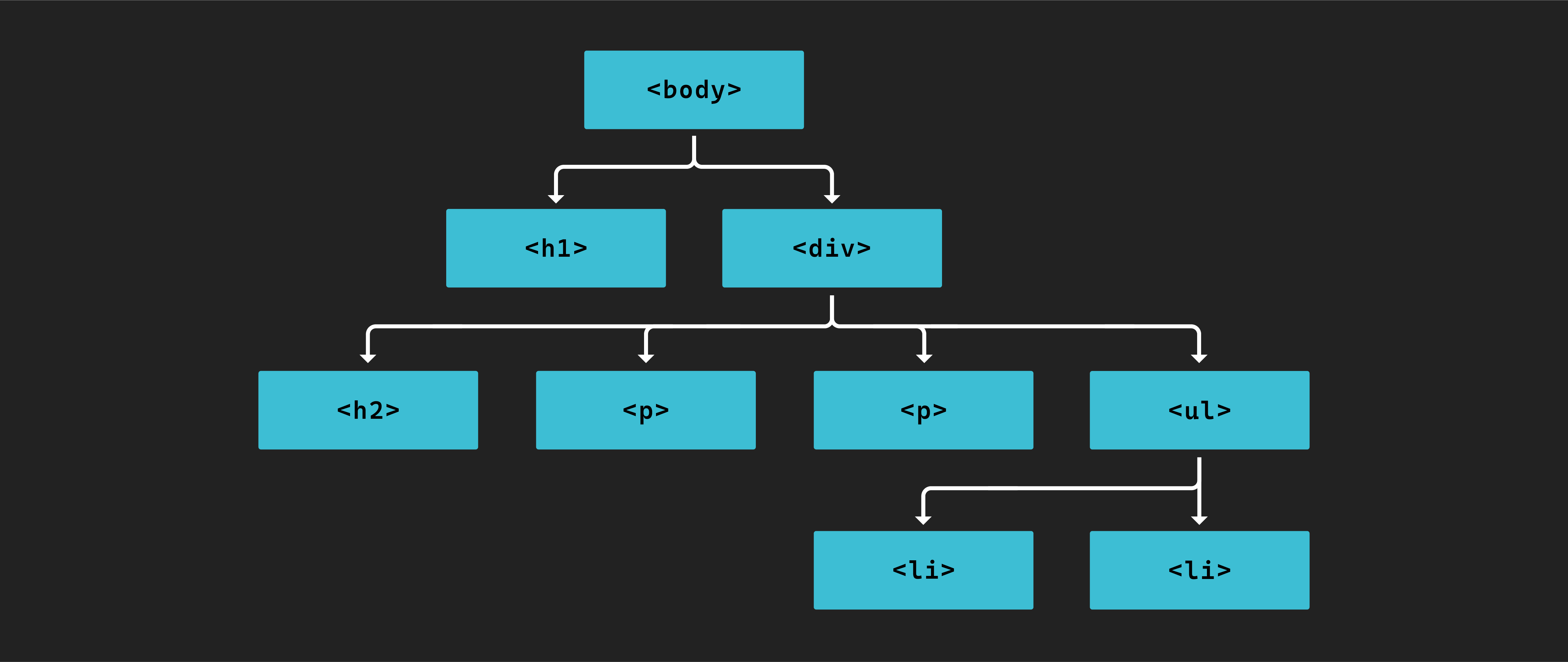
Just like in real life, a child can also be a parent (the <ul> element is a child of the <div> element and simultaneously the parent of the <li> elements). Again, proper indentation of your HTML helps keep these relationships clear and organized.
This is more than an analogy - this is the ideal way to think about how elements are connected because it even applies to how they are shown to users in the browser.