MongoDB Atlas Setup Lab Level Up
Test Drive in the Mongo Shell
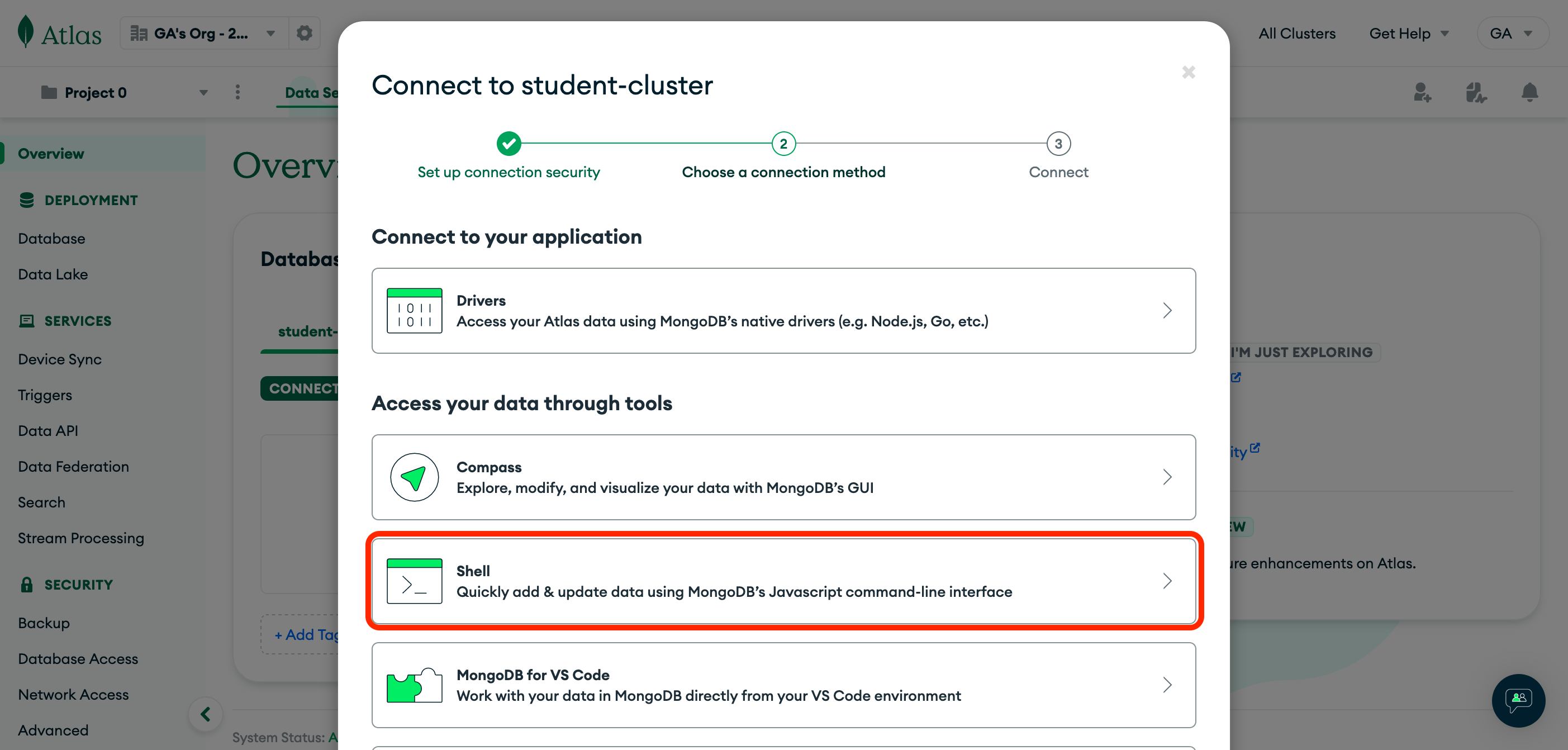
Click the Connect button again on the Overview page, and this time select Shell under the Access your data through tools header:
Although Atlas may show how to install mongosh (MongoDB’s Shell) permanently for your operating system, it is unnecessary.
Instead, we can temporarily install and run mongosh by copying and pasting the command shown in Atlas into your terminal.
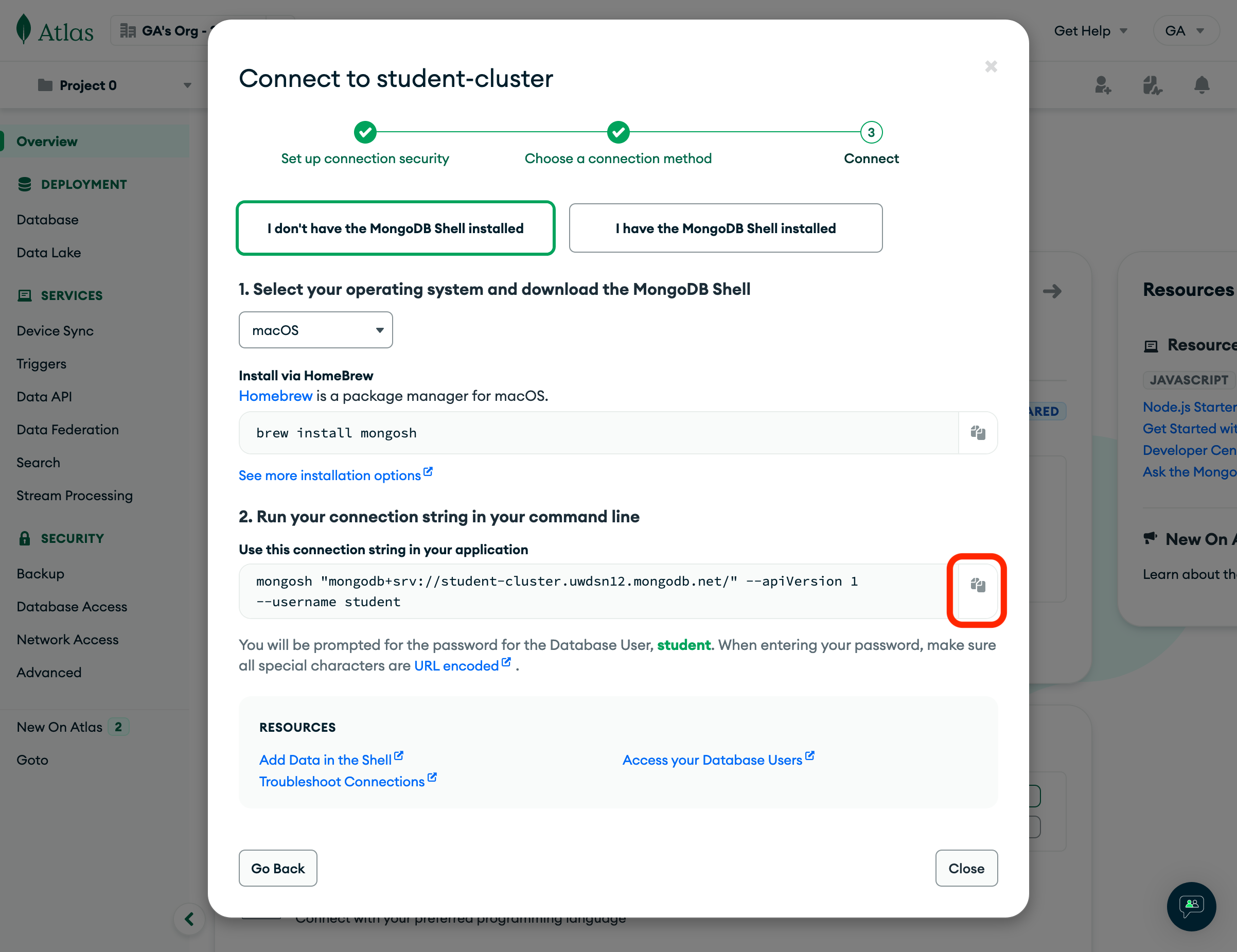
❗️ Before pressing enter, add
npxto the front of the command so that the command looks something like this:
npx mongosh "mongodb+srv://student-cluster.uwdsn12.mongodb.net/" --apiVersion 1 --username <yourusername>
If prompted to install, be sure to answer with y.
You will be prompted to enter your database user’s password.
Congrats, you are now ready to test your databases! 🎉 �